

Configuring payers and billing codes
Billing configuration lives under Configuration → Billing. It covers the payers you bill, the fee schedules per payer, the authorization rules the system enforces, and the EDI / Office Ally submission settings.
1. Payers
Section titled “1. Payers”A payer is whoever pays for services — a commercial insurance company, a state Medicaid plan, a private-pay parent. Every claim has a payer; every authorization has a payer.
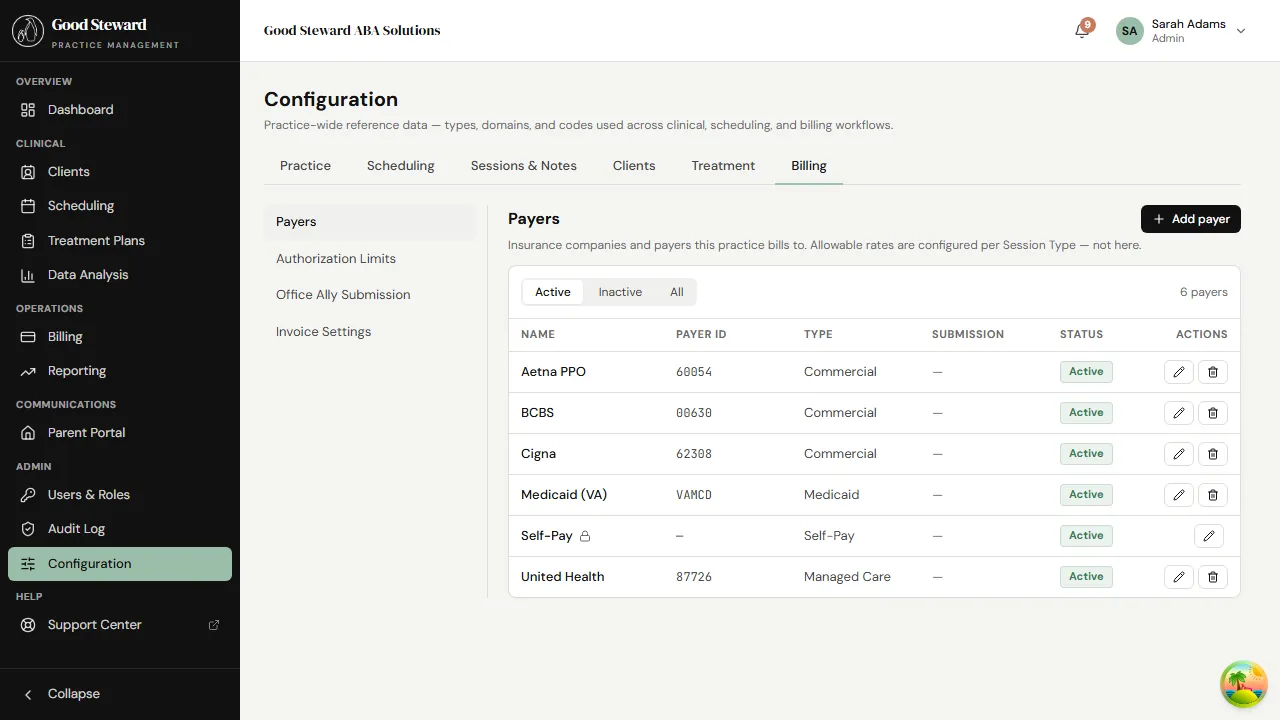
Each payer row has:
- Name — what shows up on dropdowns and on claims.
- Type — Commercial, Medicaid, Medicare, or Private Pay. The type controls a few defaults (Medicaid claims include taxonomy; private-pay flips claims toward the invoice path instead of EDI submission).
- Payer ID — the EDI / clearinghouse identifier. Office Ally needs this to route the claim. Get it from the payer’s provider portal or your clearinghouse’s payer list.
- Address — used on paper claims and parent-facing invoices.
- Submission method — EDI 837P, Paper, or Manual (you handle it externally). EDI is the default for most commercial / Medicaid plans.
Adding a payer
Section titled “Adding a payer”Click Add Payer. Fill in name, type, payer ID, and address. Save, and the payer is immediately available on client insurance forms and authorization dialogs. You can flip a payer to Inactive later — historical claims keep working but the payer drops off new-record dropdowns.
2. Fee schedules per payer
Section titled “2. Fee schedules per payer”Every payer needs a fee schedule — the rate (per unit) you bill each CPT code. Open a payer and go to its Rates tab.
A fee schedule entry has:
- Service code — 97153, 97155, 97156, 0362T, etc.
- Modifier — HO, HM, U1–U9, depending on the payer’s contract.
- Rate — dollars per unit (a unit is 15 minutes for most ABA codes).
- Effective dates — when this rate is in force. Most payers reset rates annually; keeping historical rates lets the system bill the right amount for an old session even after a contract update.
When a session is finalized, the system looks up
(payer × code × modifier × date-of-service) and uses the matching
rate. If no match is found, the claim is flagged for manual review
rather than billed at $0.
3. Authorization Limits
Section titled “3. Authorization Limits”The Auth Limits panel sets the defaults the system enforces when a new authorization is created.
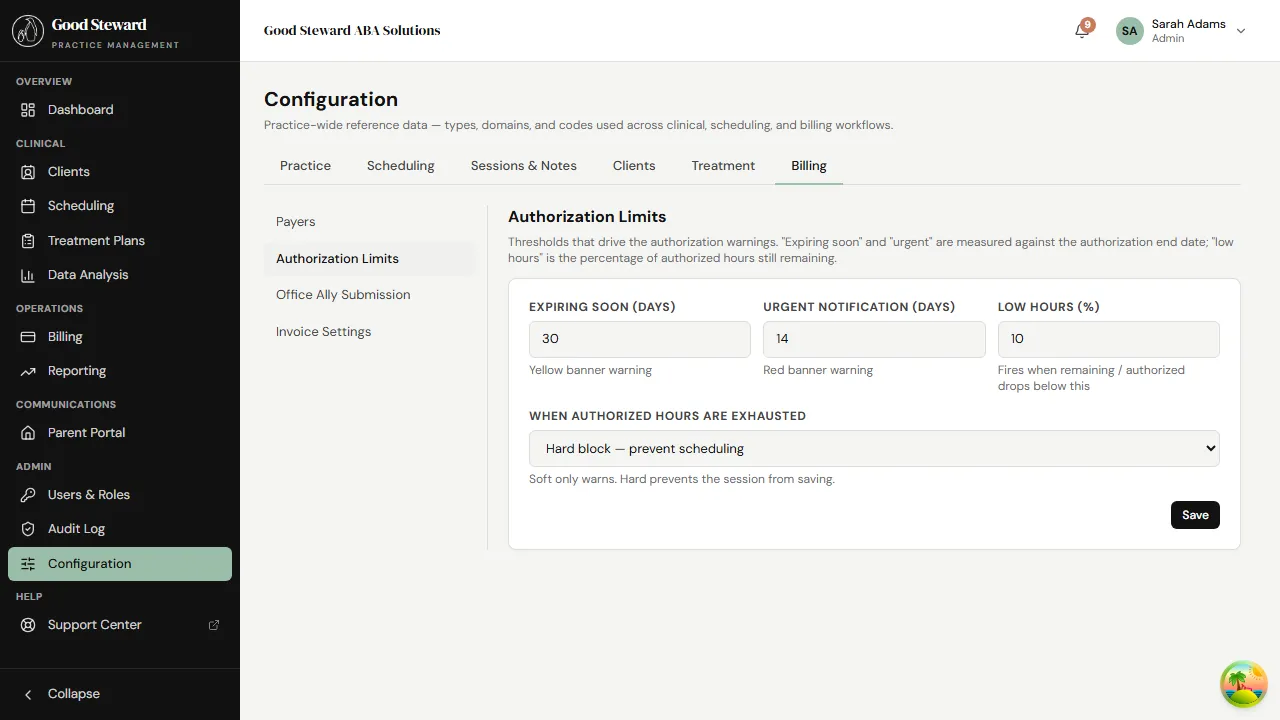
For each service code:
- Default units per period — what most payers approve for a 6-month auth. Pre-fills the auth dialog so billers aren’t typing the same number every time.
- Hard cap — the maximum the system will allow on a single auth, regardless of what’s typed. Use this to catch accidental data-entry errors.
- Warning threshold — % of approved units after which the auth badges Expiring / High utilization.
These are practice-wide defaults; an individual auth on a client can still override them when the payer letter is unusual.
4. Office Ally / EDI submission settings
Section titled “4. Office Ally / EDI submission settings”Configuration → Billing → Office Ally Submission is where you plug in the credentials the system uses to send 837P claim files electronically:
- Sender ID / Receiver ID — the trading partner identifiers Office Ally gave you when you signed up.
- Submission endpoint — the SFTP host or HTTPS URL.
- Username / password (encrypted at rest) — the credentials.
- Test mode — when on, claims are validated and previewed but not actually sent. Leave this on while you’re verifying setup.
Practices on a different clearinghouse (Availity, Change Healthcare, etc.) typically run the EDI generator and upload the file manually from the Billing → Submissions page rather than wiring up automated submission. The 837P output is standards-compliant either way.
5. Invoice settings
Section titled “5. Invoice settings”For private-pay billing, Invoice Settings controls:
- Invoice number prefix and starting number — invoices display as INV-001, INV-002, etc. Set the prefix and the starting number to mesh with your accounting system.
- Default payment terms — Net 30, Net 15, Due on receipt, etc.
- Late fee policy — flat fee or percentage, applied N days past due.
- Invoice footer text — bank routing for ACH, “Make checks payable to…” instructions, etc. Appears on every printed invoice.
6. Default billing rules per client
Section titled “6. Default billing rules per client”These set practice-wide defaults for new clients; per-client overrides happen on the client’s Demographics / Insurance tab.
- Bill-to mode — Insurance (claim → payer), Client (private invoice), or Hybrid (insurance first, balance to client). Most practices set Insurance as the default and override case by case.
- Place of service — POS code applied to claims when the session location is “clinic” (default 11), “home” (12), “school” (03), “telehealth” (02 or 10).
- Default rendering provider — usually the client’s assigned BCBA. Override per session if a different staff member ran it.
A practical setup order
Section titled “A practical setup order”If you’re configuring billing for the first time:
- Service Types (under Sessions & Notes) — every CPT code you bill, with default rates as a starting point.
- Payers — every commercial / Medicaid payer + private-pay.
- Fee schedules per payer — the real rate per payer × code, overriding the service-type default.
- Authorization Limits — defaults for what the dialog pre-fills.
- Invoice Settings — once you have one private-pay client.
- Office Ally Submission — last; this is the connector to your clearinghouse.
Once these are in place, the rest of billing — generating claims, running submissions, recording payments — is largely automated by the session-finalize flow.