
Reviewing and finalizing session notes
Once an RBT submits a session note, it lands on your queue for clinical review. Reviewing → finalizing is what turns a clinical note into a billable claim, so the order matters.
How a note moves through states
Section titled “How a note moves through states”The note has its own status, separate from the session’s status:
| Note status | What it means |
|---|---|
| Drafting | RBT is still writing |
| Complete | RBT marked the note done — ready for review |
| Submitted | Sent out for parent / guardian signature in the portal |
| Finalized | Locked. Claim has been created against this session |
You’re the gate between Complete / Submitted and Finalized. Finalize is irreversible (an addendum is the only way to add to a finalized note), so don’t rush it.
Reading a draft note
Section titled “Reading a draft note”Open a session from your dashboard (it’ll appear on the “Notes pending review” panel) or from the Scheduling calendar — the BCBA view of any session opens to the Detail tab. Click Session Note to read what the RBT wrote.
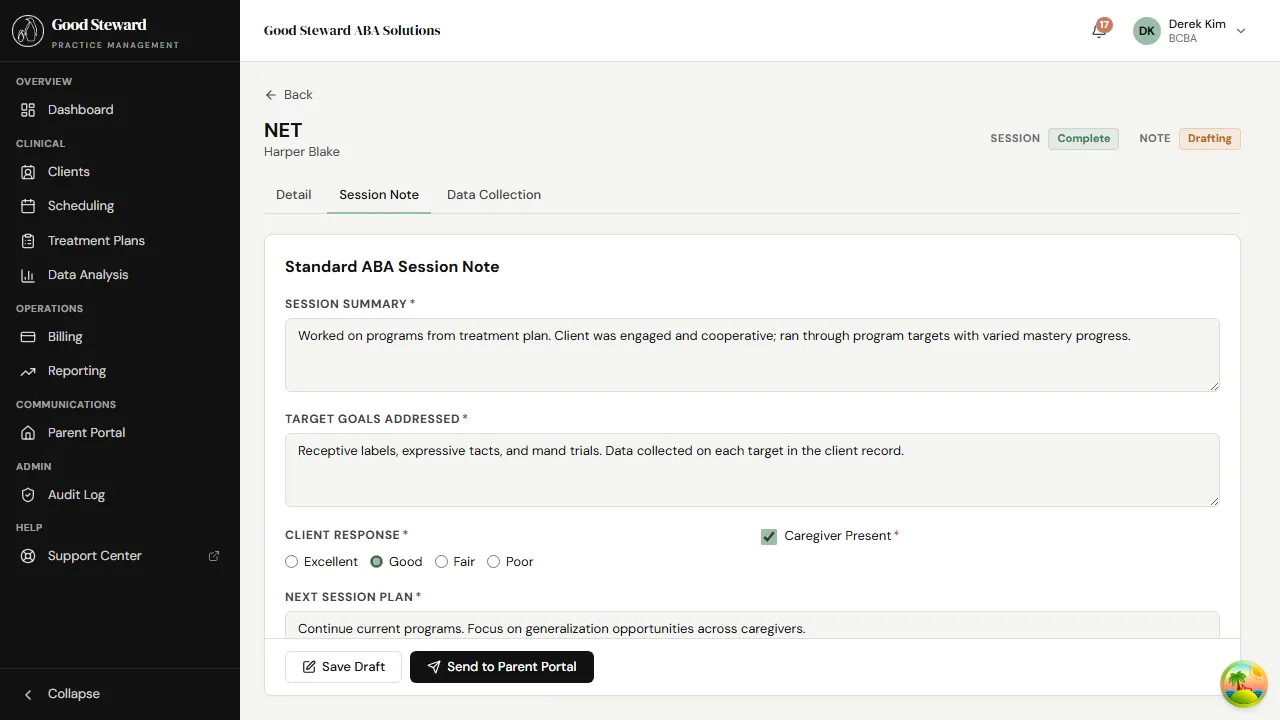
The form shows everything the RBT entered: narrative, observations,
the prompt-level / engagement radios, and any captured signatures.
While the note is in Drafting it’s still editable by the RBT;
Complete locks RBT edits — only a BCBA with finalize_notes can
revert it back to Drafting if the RBT needs to revise.
The action area at the bottom changes based on the current state:
- Drafting — no actions for the BCBA; wait for the RBT.
- Complete — Send back to RBT (revert to Drafting) and Finalize & Create Claim.
- Submitted — Recall from portal if you need to pull it back before the parent signs.
- Finalized — read-only with an Add addendum option.
Reading the data alongside
Section titled “Reading the data alongside”The same session has a Data Collection tab. Flip to it to see what the RBT actually captured — frequency counts, trial outcomes, percent accuracy, durations.
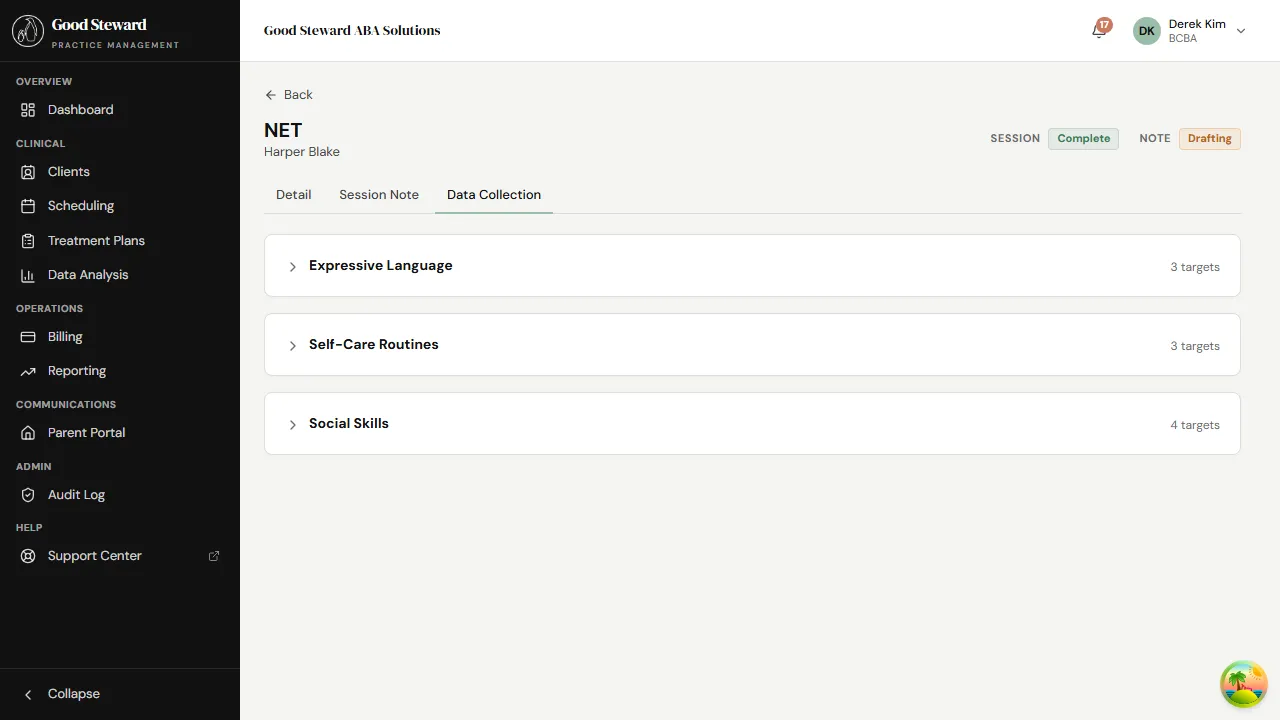
The narrative on the Session Note tab and the data on the Data Collection tab should tell the same story. If the RBT wrote “Emma mastered receptive labels today” but the Trial widget shows 5/10, ask about the discrepancy before finalizing.
The data tab is read-only for you on a Submitted/Complete note — you won’t accidentally overwrite a data point. If something needs correcting, send the note back to the RBT with a comment.
Sending a note back to the RBT
Section titled “Sending a note back to the RBT”If you spot something that needs revision — a missing time block, an unclear observation, a data point that doesn’t reconcile with the narrative — use Send back to RBT on the note action area. You’ll type a short comment explaining what to address.
The note flips back to Drafting, the RBT sees it on their dashboard under Notes needing attention, and they revise + resubmit. The back-and-forth is preserved on the note’s history.
Finalizing — what gets locked
Section titled “Finalizing — what gets locked”When you’re satisfied, click Finalize & Create Claim. A confirm prompt appears (the action is irreversible, so it asks before locking). Confirm and:
- The note moves to Finalized. Every field becomes read-only.
- A snapshot of the note’s structure (which fields, what labels) is
written into
note_dataso the note renders the same a year from now even if the practice changes its template. - A claim is generated for the session using the CPT code on the schedule and drawn against the matching authorization.
- The session status moves to Finalized.
- An audit row is written naming you as the finalizer.
The claim then flows into your Billing → Claims queue, ready to review and submit.
Co-signing supervision notes
Section titled “Co-signing supervision notes”When the session is a supervision session (concurrent or dedicated), the note carries a supervision section the BCBA fills in. If you ran the supervision yourself, you’ll fill that in before finalizing; if the supervision was concurrent with an RBT-led session, you sign the supervision section and finalize the RBT’s note in the same flow.
The note’s structure is determined by the session’s note type — a supervision session uses a supervision note type, with both staff signature fields.
Correcting a finalized note
Section titled “Correcting a finalized note”You can’t edit a finalized note. To document a correction, add an addendum: a separate, timestamped, signed note that’s appended to (but never replaces) the original. From a finalized note, click Add addendum, write what you’re correcting and why, and sign.
The amended note shows the original at top and the addendum below; both stay in the record forever. Auditors and reviewers can see the full history — that’s the point.
Practical review pacing
Section titled “Practical review pacing”A few habits that help:
- Don’t let a queue grow. Reviewing daily catches issues while the RBT still remembers the session; reviewing weekly leads to “I don’t remember” loops.
- Read the data first. If the data tab tells a clean story, the narrative usually does too — start there and skim the narrative for anything anomalous.
- Comment specifically when you send back. “Please clarify the prompt fading sequence in the antecedent section” beats “needs revision” by a wide margin.