
Collecting session data
The Data Collection tab on the session page is where you record trial data, frequency counts, durations, and task-analysis chains as the session unfolds. Everything is scoped to this session and this client’s active programs.
What you’ll see
Section titled “What you’ll see”When you open the tab, the client’s active programs appear as collapsed cards. Each card lists the program name, its domain (e.g. Communication, Self-Care), and the count of in-progress targets.
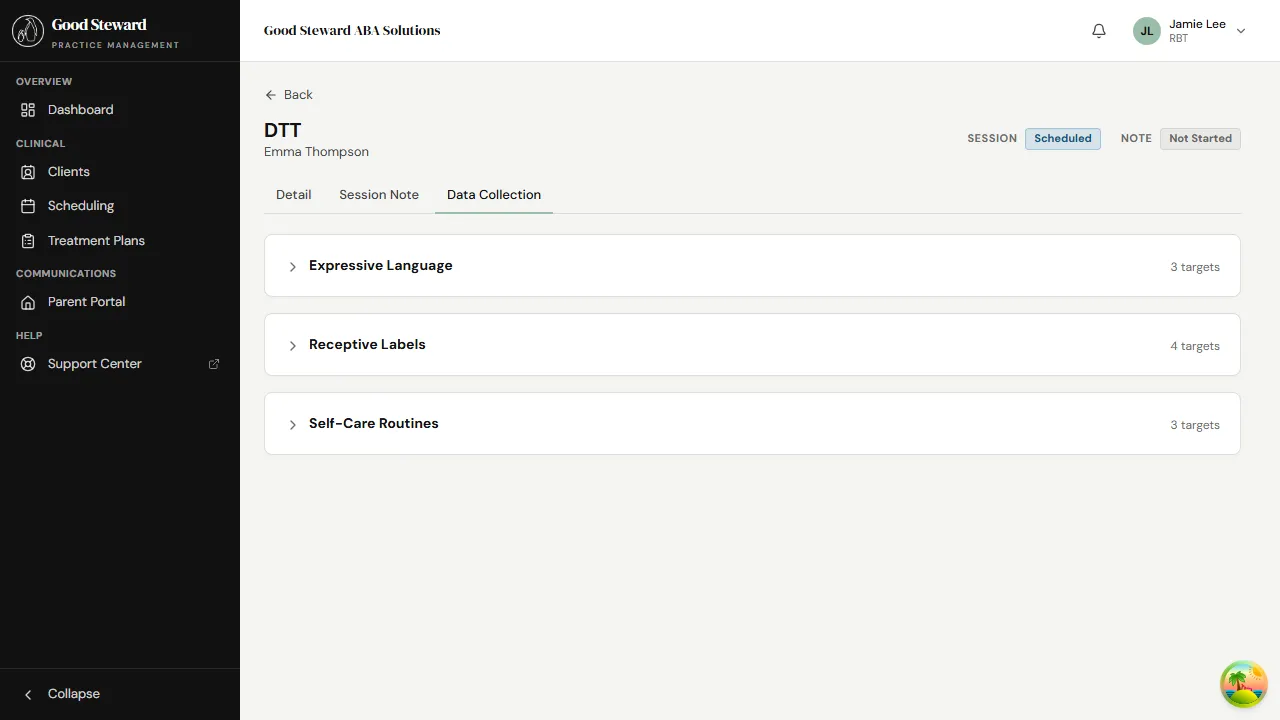
Programs are collapsed by default so you can scan the list without a huge wall of widgets. Tap a card header to expand it.
Expanding a program
Section titled “Expanding a program”Tap any program to expand it and reveal its targets.
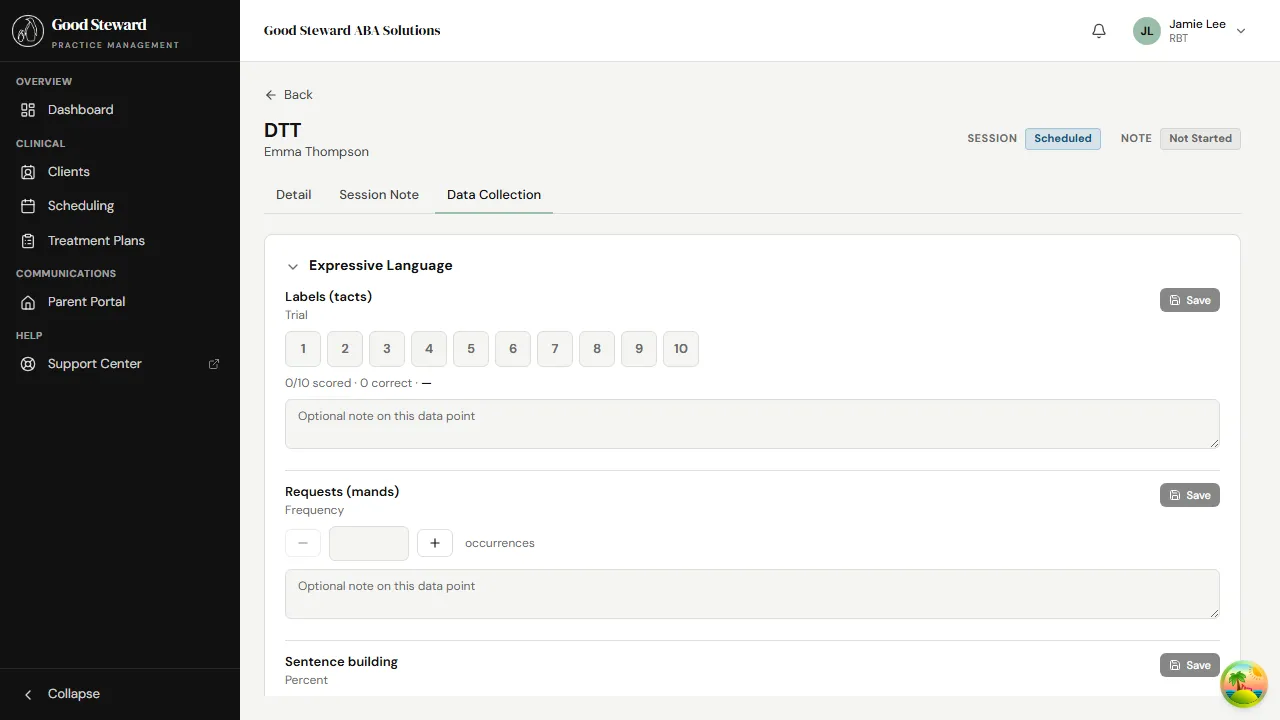
Each target shows the target name, a short data-type label (Trial, Frequency, Percent, Duration, Task Analysis), the data-entry widget itself, and an Optional note field for anecdotal context.
A Save button sits at the right of every target. Data is not saved automatically — tap Save when you’ve finished entering a data point. An Unsaved indicator appears the moment you change a value; once saved, it switches to a check.
You can have several programs expanded at once. Collapse one and the target widgets keep their state — your in-progress data sticks around.
The five widget types
Section titled “The five widget types”Numbered cells, one per trial. Tap a cell to mark it scored (correct/incorrect/prompt level depending on your practice’s coding). The bottom line summarizes “X/N scored · Y correct”.
Use Trial when the session has a fixed number of discrete teaching trials (DTT runs).
Frequency
Section titled “Frequency”A counter with − / + buttons and a manual entry field.
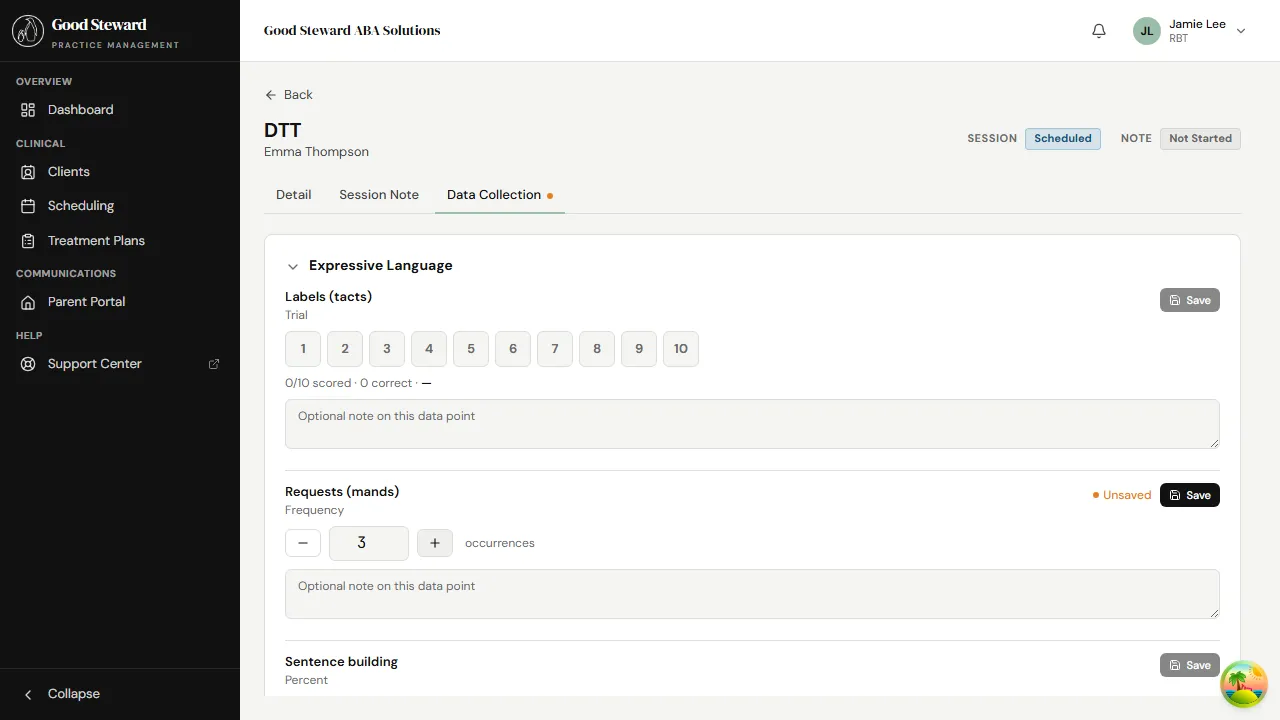
Tap + every time the behavior occurs; tap − to correct an overcount. The screenshot above shows the counter at 3 — three occurrences logged so far in this session.
Use Frequency for behaviors you can tally without timing — mands, greetings, vocal stereotypy episodes.
Duration
Section titled “Duration”A stopwatch — tap Start, do whatever you’re observing, tap Stop. Multiple bouts add up; the displayed total is the running sum for the session.
Use Duration for behaviors where length matters more than count — sustained attention, joint attention, time-on-task.
Percent
Section titled “Percent”Two counters: correct and total. The widget shows the percentage as you go.
Use Percent when the session is a varied number of opportunities and you want a single accuracy figure rather than per-trial detail.
Task Analysis
Section titled “Task Analysis”A vertical list of the steps in the chain, with a per-step prompt-level selector (independent / verbal / model / physical). The widget reports “X/N steps independent” as you score.
Use Task Analysis for chained skills — washing hands, brushing teeth, following a multi-step routine.
Switching targets without losing data
Section titled “Switching targets without losing data”Each target’s widget keeps its state for the session even if you collapse the parent program or switch tabs to write the note. Your data persists in memory until you save (then it persists in the database). If you reload the page mid-session, unsaved entries are lost — the Save button on each target is the commit point.
Tip: hit Save after each completed target rather than at the end of the session. If something goes wrong (browser refresh, lost battery) you only lose the target you were working on.
Adding a quick anecdotal note
Section titled “Adding a quick anecdotal note”The Optional note field under each widget is a one-line spot for context that doesn’t fit the data type — “ate snack mid-trial”, “caregiver in room”, “prompt fading reduced today”. This note is saved with the data point, not with the session note narrative.
For full session-level narrative (what you’d report to the parent or BCBA), use the Session Note tab — see Writing your session note.