

Viewing your schedule
Your schedule shows up in two places: the Today timeline on your dashboard, and the Scheduling page for the week-at-a-glance view.
Today’s sessions on the dashboard
Section titled “Today’s sessions on the dashboard”When you sign in, the dashboard opens with a Today panel listing every session you have on the calendar for today.
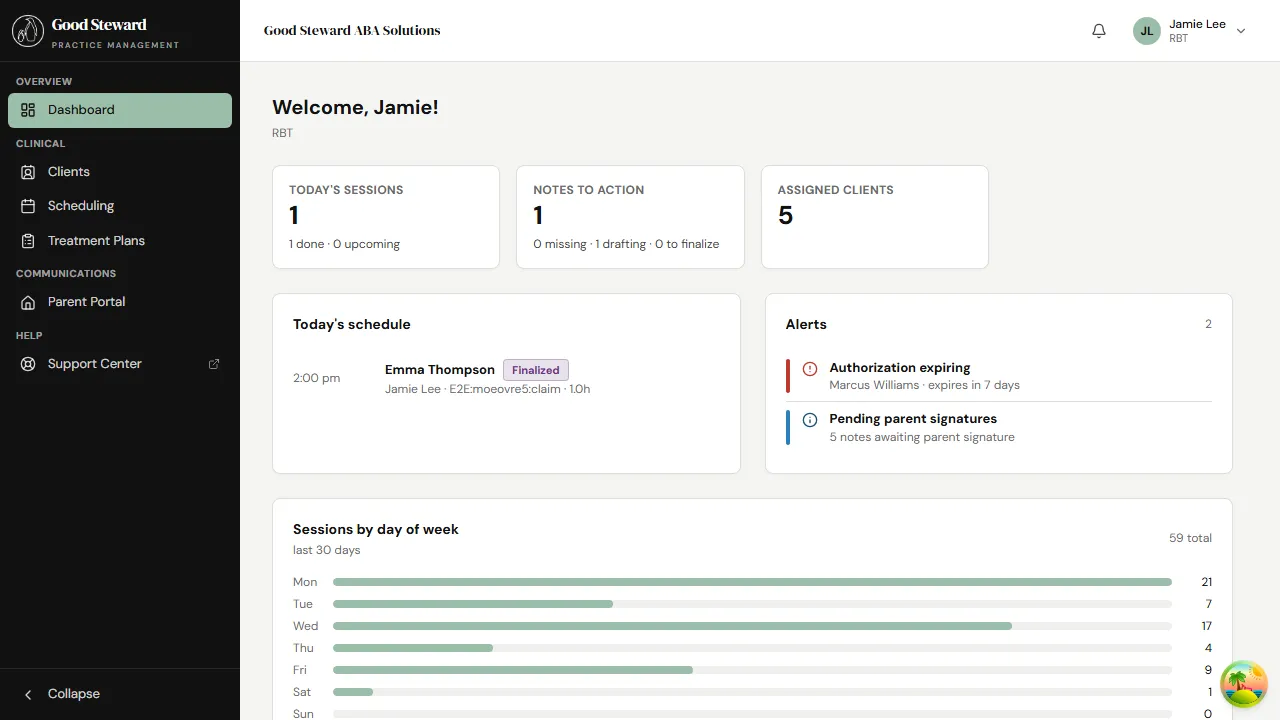
Each row shows:
- The client and service (DTT, NET, supervision, etc.)
- The scheduled start and end time
- The location — clinic, home, school, or community
- A status pill — Scheduled, In Progress, Finalized, or Canceled
Click a session row to open it. From there you can check in (if visit verification is on for your practice), collect data, and write your session note.
If the timeline is empty for today, you have nothing scheduled — either your day off or the practice hasn’t put anything on the calendar yet.
Looking ahead — the Scheduling page
Section titled “Looking ahead — the Scheduling page”Use the Scheduling sidebar item for the week (or day) view of everything assigned to you.
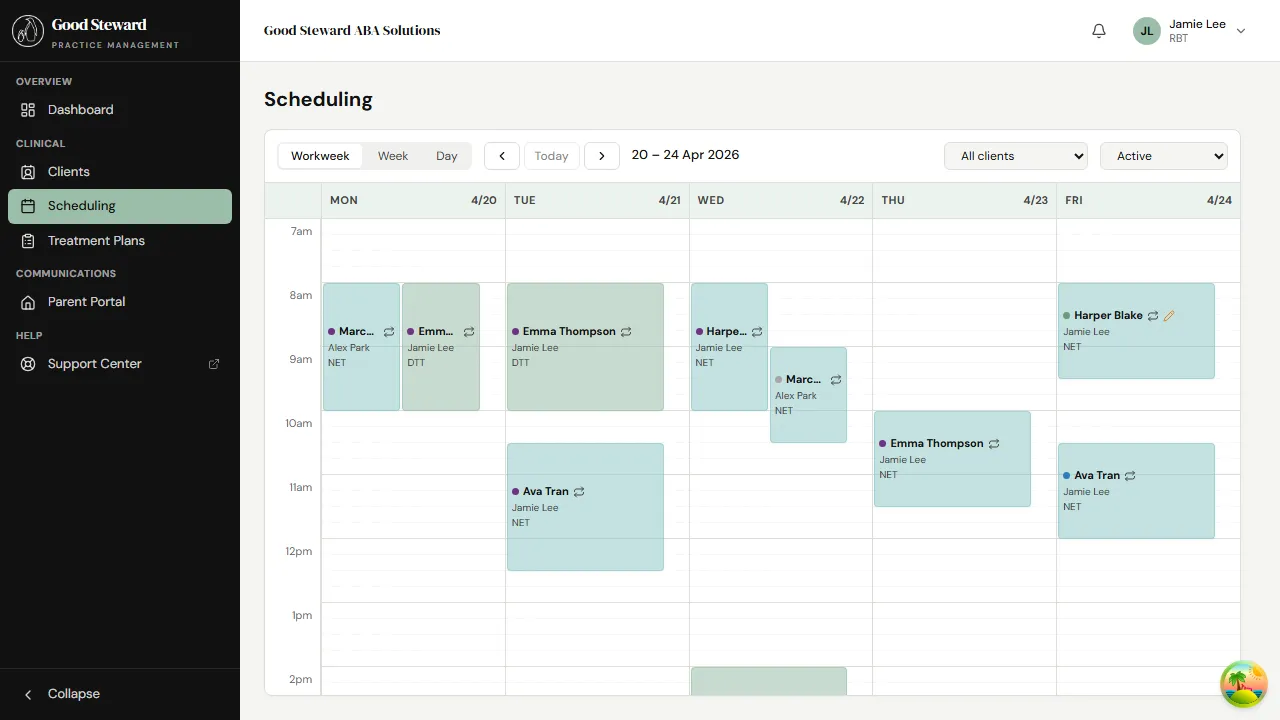
The week starts on Monday and shows session blocks at their scheduled time. Each block is colored by service type so you can spot a DTT block versus an NET block at a glance.
You only see sessions assigned to you. There’s no staff selector because the page already filters to your assignments — that’s by design, not a missing feature.
Switching views
Section titled “Switching views”The toolbar at the top of the page lets you switch between Day, Week, and Month views. Use Day when you need a tall, detailed column of just today; use Week as your default; use Month when you’re trying to spot a pattern (a recurring Tuesday client, a busy week).
Reading a block
Section titled “Reading a block”Click any block to open the session. You can also hover for a quick preview of the client, location, and service code without leaving the calendar.
What the status colors mean
Section titled “What the status colors mean”The same status set runs through the dashboard timeline, the scheduling calendar, and the session detail page:
- Scheduled — on the calendar; nothing has happened yet
- In Progress — you’ve checked in and the session is open
- Finalized — the session is closed and the note submitted
- Canceled — the session was called off (you, the parent, or the practice)
- No Show — the client didn’t appear and the session wasn’t formally canceled
Schedules can move. If a parent calls in to cancel or reschedule, an admin or BCBA updates the calendar — you’ll see the change next time you refresh, and any sessions affecting today bubble up to the dashboard.