

Viewing your child's progress
Once you’re signed in, the portal opens to your child’s home page. Everything you can do is in the tabs across the top.
Overview — your home page
Section titled “Overview — your home page”The Overview tab shows what’s coming up and what needs your attention.
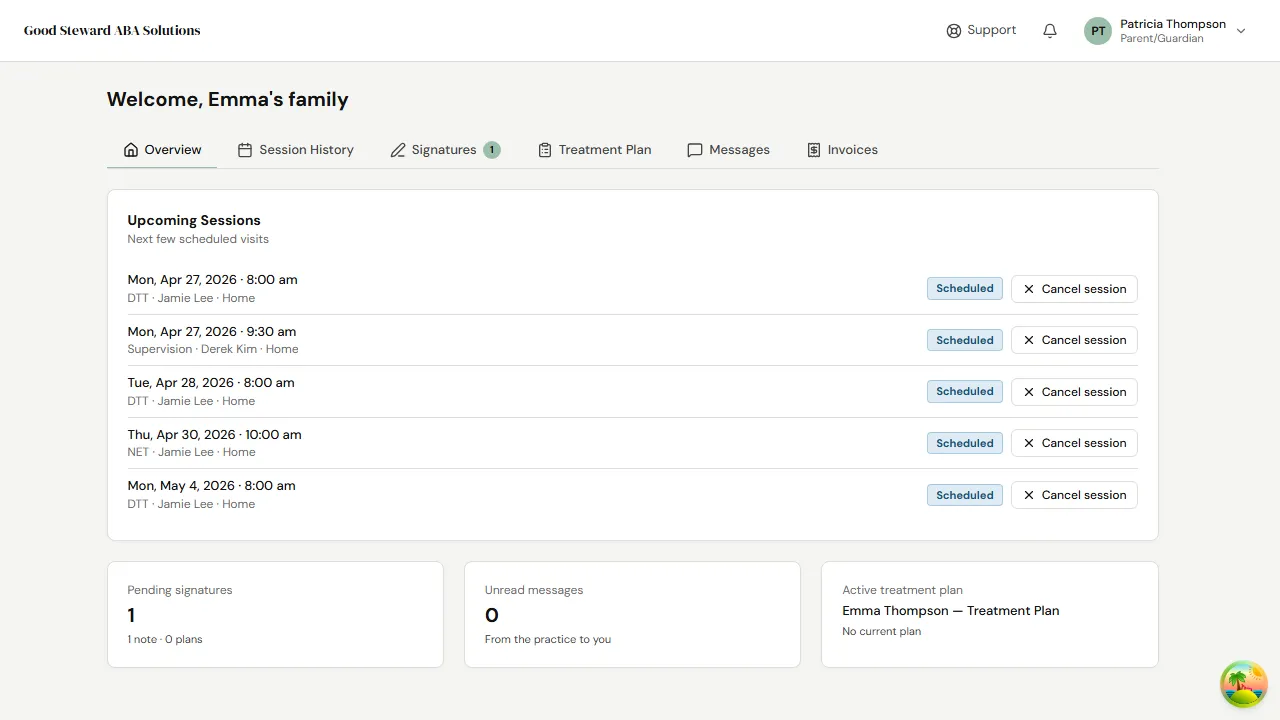
You’ll see:
- Upcoming Sessions — the next few visits on the calendar, with the scheduled time, who’ll be running the session, and the location. Use the Cancel session button next to a visit if you need to call off.
- Pending signatures — count of session notes and treatment plans waiting for your signature. The number lights up the Signatures tab.
- Unread messages — count of new messages from the practice.
- Treatment plan — the title of your child’s current plan and when it was signed.
Session History — what’s happened so far
Section titled “Session History — what’s happened so far”The Session History tab lists past sessions with the note your clinician wrote.
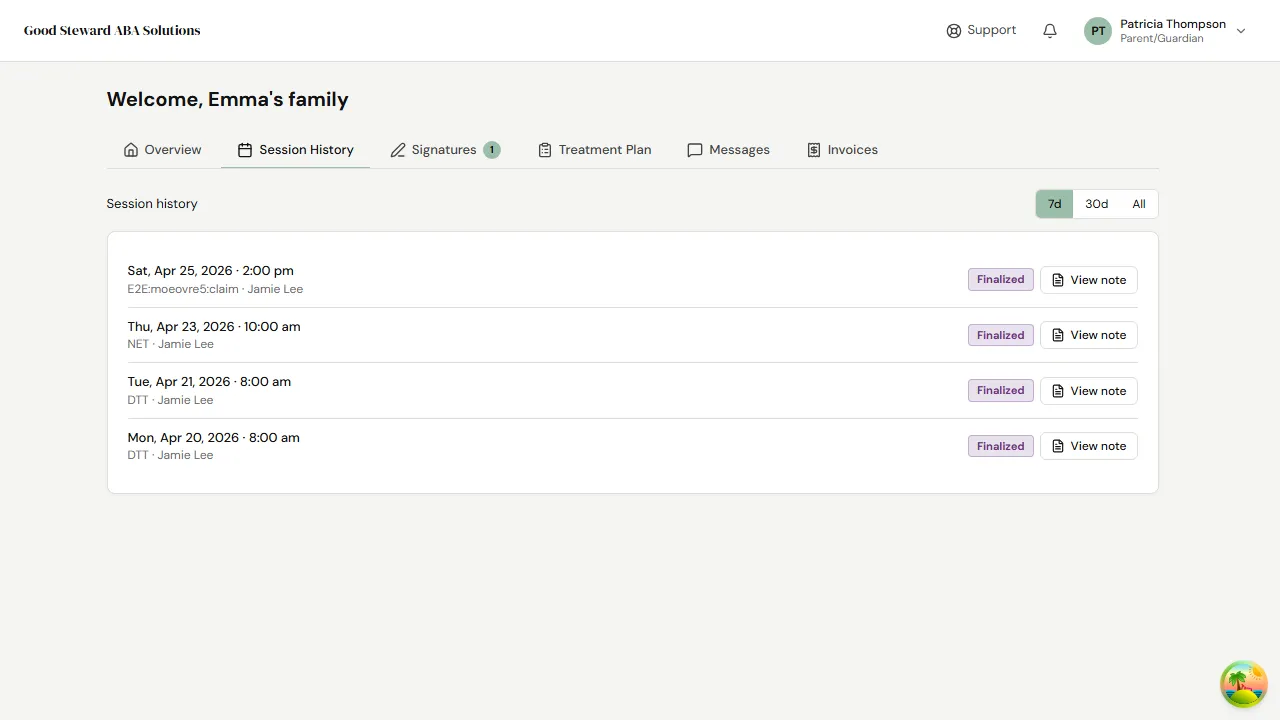
Click any session to read the full note. Notes only appear here once the clinician has finalized them — until then the session shows but the note isn’t yet available.
Signatures — what needs your sign-off
Section titled “Signatures — what needs your sign-off”When your clinician sends a session note or treatment plan for your signature, it shows up under the Signatures tab. The badge in the tab header tells you how many are waiting.
Open the document, read it, and use the signature pad at the bottom to sign. Your signature is saved with the document and the practice is notified automatically.
Treatment Plan — the current plan of care
Section titled “Treatment Plan — the current plan of care”The Treatment Plan tab shows your child’s currently-active treatment plan — the goals being worked on, the behaviors being addressed, and the review date.
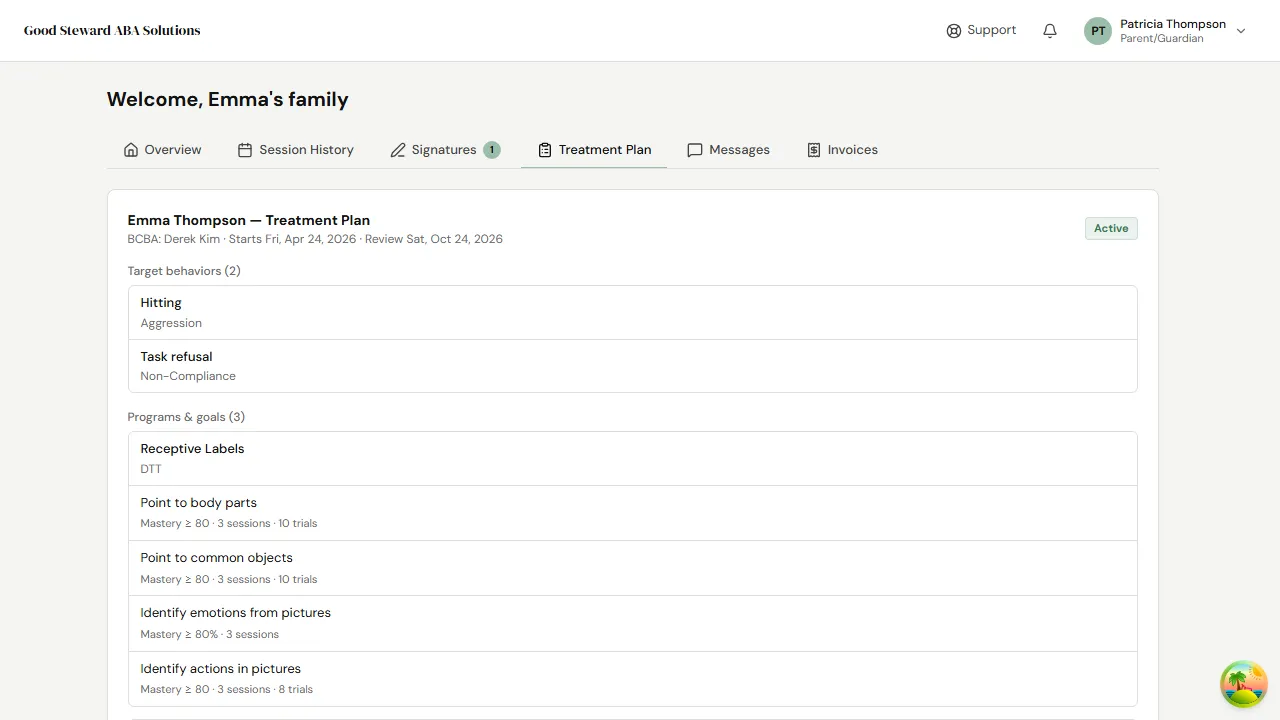
If a new plan is being prepared for your signature, it’ll appear under Signatures rather than here. Once signed and activated, it replaces what you see on this tab.
Messages — talking with the practice
Section titled “Messages — talking with the practice”Use the Messages tab to send a message to the practice or read a message they’ve sent you. The chat-style thread keeps everything in one place; use it for things like “running 5 minutes late” or “Emma’s been working on greetings at home.”
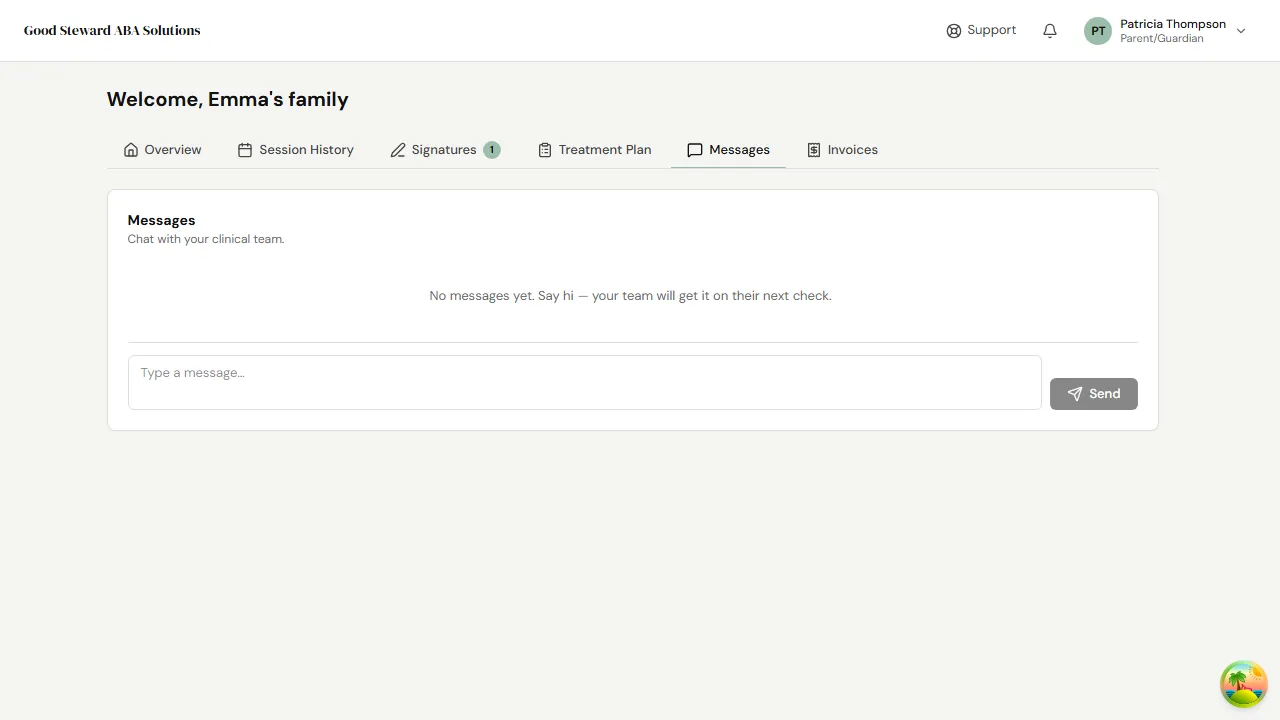
Avoid using messages for medical emergencies — call your child’s clinic directly for anything urgent.
Invoices — what you owe
Section titled “Invoices — what you owe”If your clinic bills you directly (as private-pay or for the part of a session not covered by insurance), invoices appear under the Invoices tab.
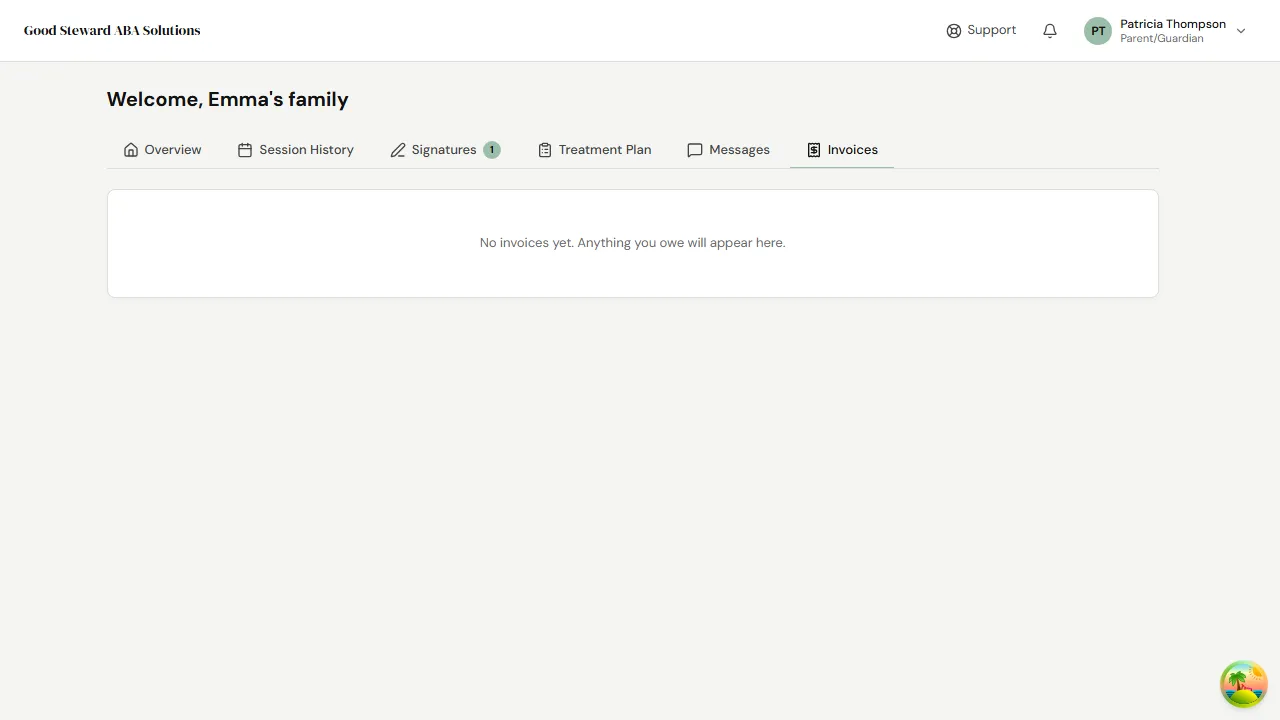
Each invoice shows the date, the amount due, and status (Outstanding, Paid, Voided). Click an invoice to see the line items or download a PDF copy. Payment instructions appear on the invoice itself — your clinic sets these up.
Updating your contact info
Section titled “Updating your contact info”To change your phone, email, or address, contact your clinic. Parent contact info is part of your child’s record — the practice updates it on your behalf so the change is logged correctly.