

Setting up your practice
The Configuration page is admin home base. It’s where the practice’s reference data lives — the lists, codes, templates, and defaults that every other surface in the app reads from. Setting it up well at launch saves a lot of cleanup later.
Configuration is grouped, not flat
Section titled “Configuration is grouped, not flat”The page is organized into top-level groups across the top — Practice, Scheduling, Sessions & Notes, Clients, Treatment, Billing — each with a left-rail sub-list. Pick a group, then a sub-item.
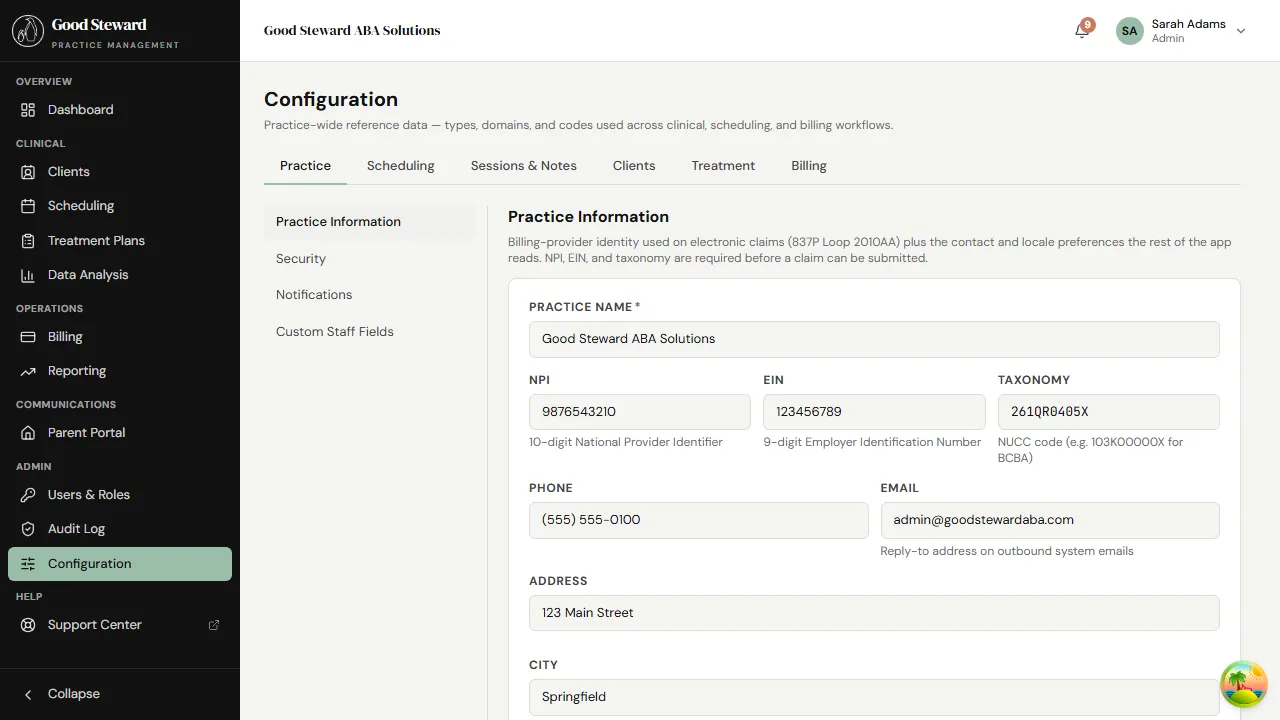
1. Practice profile
Section titled “1. Practice profile”Practice → Practice Information is where you set:
- Name — your DBA name as it should appear in the app header and on patient-facing documents.
- Address — used on invoices and any printable note cover sheet.
- NPI and taxonomy — your group NPI, not an individual clinician’s. Used on every claim.
- Logo — drop in a PNG/SVG; used in the sidebar and on exports.
- Time zone — controls how scheduled times render across the app. Set this before anyone starts booking sessions; flipping it later means every existing session shifts.
Practice → Practice Hours sets the default operating window. The scheduler dims hours outside this window when you’re booking, but doesn’t actually block out-of-hours sessions — it’s a guidance, not a hard cap.
2. Security and notifications
Section titled “2. Security and notifications”Practice → Security controls things like:
- Session timeout — minutes of inactivity before an idle user gets logged out (default 15).
- MFA enforcement — whether MFA is mandatory for all users.
Practice → Notifications controls the global notifier defaults (email subjects, who gets weekly digests, etc.). Most practices set this once and forget it.
3. Note types
Section titled “3. Note types”Every session uses a note type — the template that defines what fields the RBT and BCBA fill out. Practices typically run with 3–6 note types: a daily ABA note, a parent-training note, a supervision note, sometimes a separate intake/assessment note.
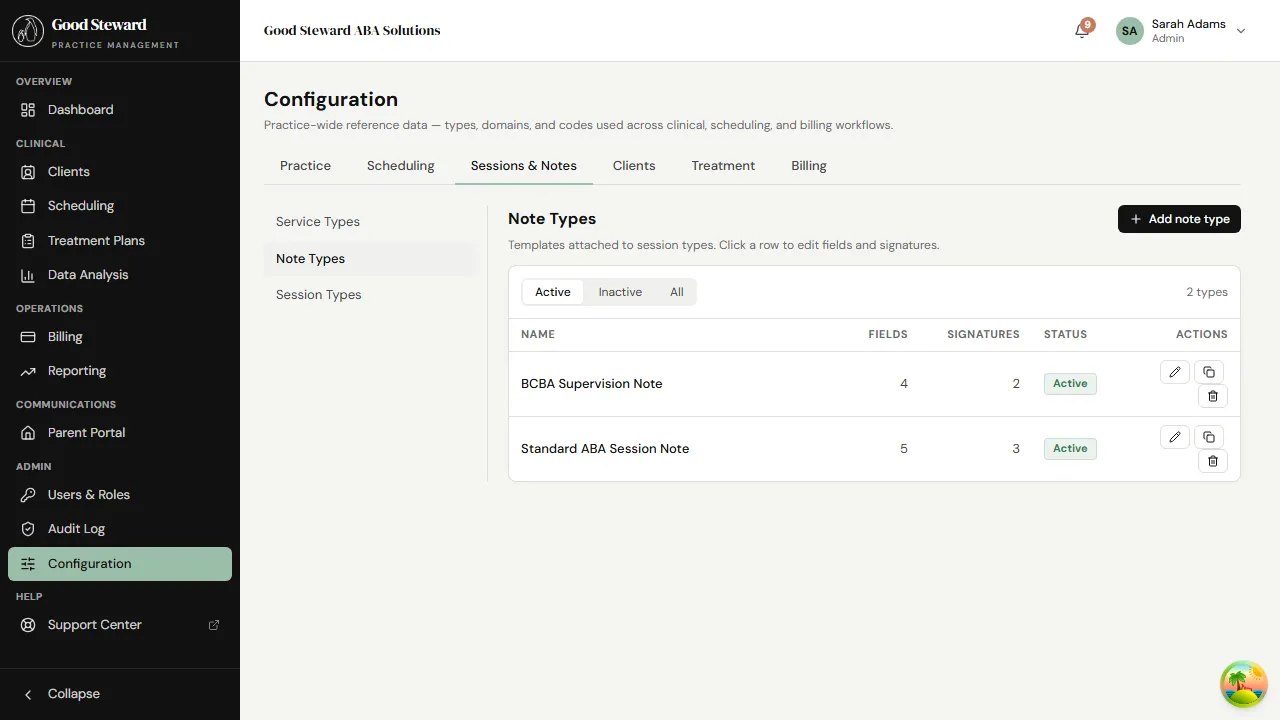
The Note Types panel lists the templates currently configured. From here you can:
- Click a template name to edit it.
- Click New note type to create one from scratch.
- Mark a template inactive (preserved for historical sessions but not selectable for new ones).
Building a note type
Section titled “Building a note type”The builder shows the structure on the left and a live preview on the right.
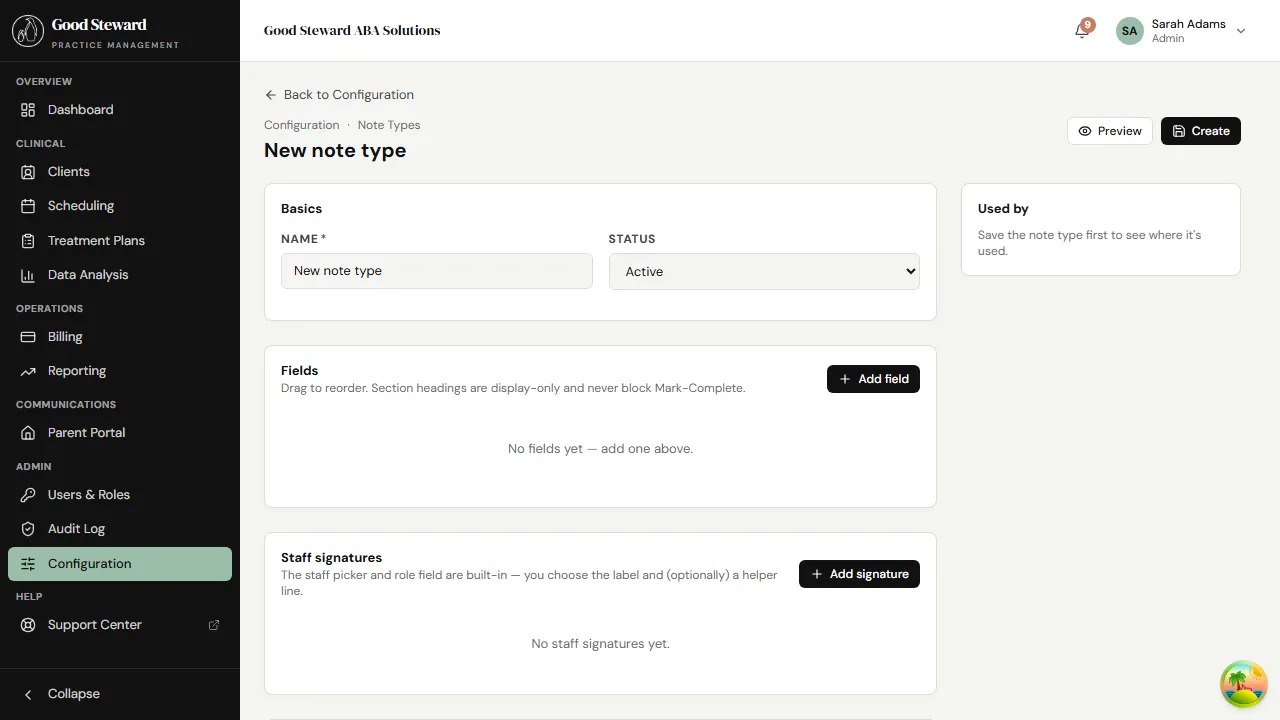
A note type has four pieces:
- Basics — the name, the role types that can use it (most are RBT-only, supervision is BCBA-only), and the CPT code(s) it can back.
- Fields — drag-and-drop list of the fields the user fills out: text areas, radio sets, multi-select, numeric inputs, signatures. Section headings are display-only and never block Mark-Complete.
- Staff signatures — which signature blocks are required and whether they can be co-signed by another staff member.
- Parent signature — whether the parent signs in-session or via the portal.
Saving the template makes it available for new sessions immediately. Existing sessions keep using the version of the template that was active at the time they were finalized — that’s why the noteTypeSnapshot is captured on finalize.
4. Service and session types
Section titled “4. Service and session types”Sessions & Notes → Service Types lists the CPT codes and descriptions you bill (97153, 97155, 97156, 0362T, etc.). Each service type has a default rate, default duration, and which note type pairs with it. Get this right early — service types appear on every dropdown when scheduling.
Sessions & Notes → Session Types is a lower layer — different contexts a service can be delivered in (DTT, NET, Parent Training, Supervision, etc.). Session types feed the practice’s reporting filters and the calendar color-coding.
5. Custom fields
Section titled “5. Custom fields”Each of Practice / Clients / Treatment offers a Custom Fields sub-item. Use these to add fields the standard schema doesn’t cover:
- Custom Staff Fields — internal staff fields like emergency contacts, badge numbers, training dates.
- Custom Client Fields — practice-specific intake fields not in the demographics tab (e.g. school district, mode of transport, preferred language).
- Custom Treatment Plan Fields — additional sections on the treatment plan template.
Custom fields are typed (text, number, date, dropdown) and can be required. They appear on the relevant edit form once added.
6. Reference data lists
Section titled “6. Reference data lists”The remaining sub-items are short, focused lists you’ll edit occasionally:
- Diagnoses — practice’s working list of ICD-10 codes for client primary/secondary diagnoses.
- Behavior Types — categories for the operational definitions on treatment plans (aggression, elopement, vocal stereotypy…).
- Program Domains — communication, social skills, self-care, etc. Tags every program with a category.
- Trial Result Codes — how the trial widget scores correct / incorrect / prompt level. Practices customize these to match their clinical convention.
- Location Types — clinic / home / school / community.
- Cancellation Reasons — the dropdown the parent or staff picks when a session is canceled.
- Client Relationships — Mother / Father / Foster / Step-parent / Legal Guardian options on the parent-link form.
A practical first-day checklist
Section titled “A practical first-day checklist”If this is your first time setting up a practice:
- Practice Information — name, address, NPI, time zone, logo.
- Security — set the idle timeout and MFA enforcement.
- Service Types — every CPT code your practice bills.
- Note Types — at minimum a daily ABA note, plus supervision.
- Behaviors / Domains / Trial Result Codes — your clinical conventions for the data widgets.
- Diagnoses — the ICD-10 list you actually use.
- Custom fields — anything intake/clinical/staff requires that isn’t built-in.
Get those done and you can start inviting users and seeing clients the same day.