

Creating parent invoices
Invoices are the parent-facing side of billing — used for private-pay clients and for any balance that’s the family’s responsibility after insurance posts. They live alongside claims under Billing, but they’re a separate workflow with their own state machine.
When to invoice vs. submit a claim
Section titled “When to invoice vs. submit a claim”The decision is made by the client’s Bill-to mode (set on the client’s Demographics / Insurance tab):
- Insurance — finalize a session and a claim is created. No invoice unless the payer leaves a balance the family owes.
- Client (private pay) — finalize a session and an unbilled charge is created instead of a claim. You bundle these into an invoice on a regular cadence (weekly, monthly).
- Hybrid — claim goes out first; once it posts, any patient responsibility shows up in the unbilled queue ready to invoice.
The Invoices surface
Section titled “The Invoices surface”Open Billing → Invoices.
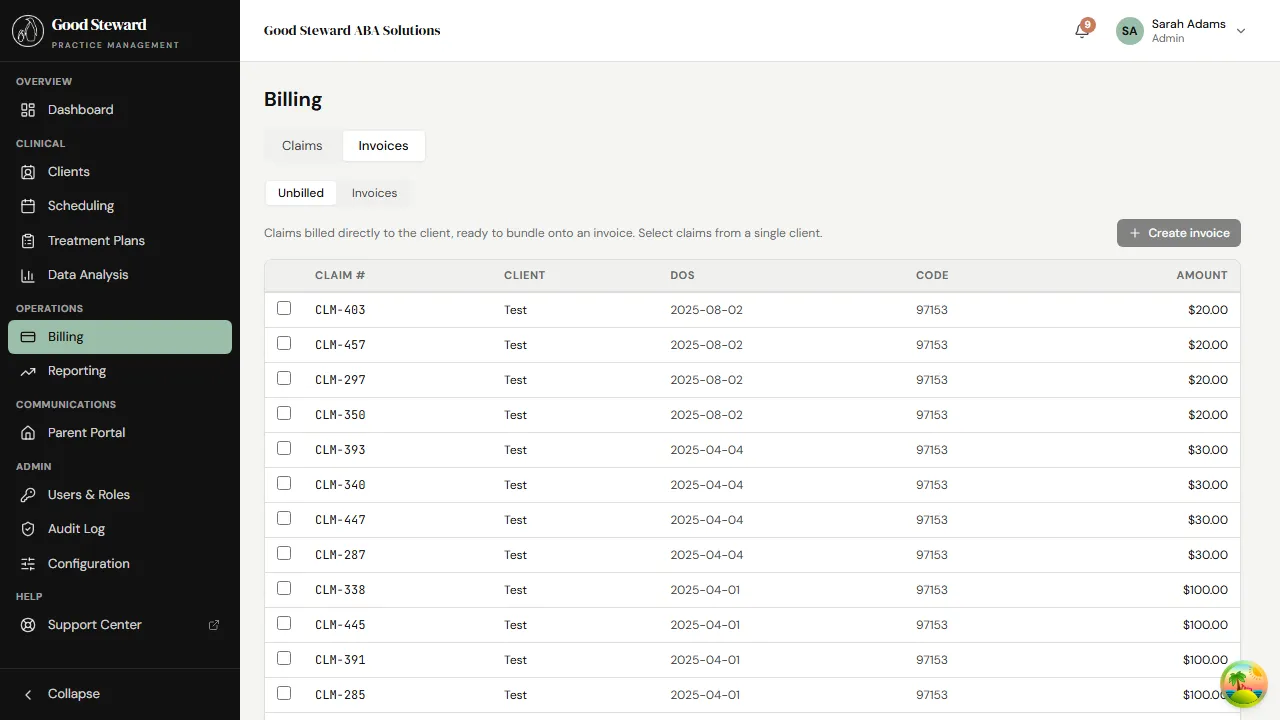
Two sub-tabs:
- Unbilled Charges — every session-level charge waiting to be invoiced. Grouped by client. The number on the tab is the count.
- Invoices — every invoice ever created, with status, amount, amount paid, balance.
If the practice doesn’t have any private-pay or hybrid-billed clients yet, both tabs will be empty — that’s the expected starting state.
Creating an invoice from unbilled charges
Section titled “Creating an invoice from unbilled charges”From the Unbilled Charges tab:
- Pick a client. The right pane lists every unbilled charge for that client (date, service code, units, rate, line total).
- Select the charges to include (default: all).
- Click Create Invoice. The dialog asks for:
- Due date — defaults to today + payment terms (Net 30, etc., from billing config).
- Notes — shown on the printable / portal version.
- Save. The invoice is created in Draft status and is visible on the Invoices tab.
Drafts are not yet visible to the parent — you can edit, add / remove line items, or delete a draft entirely.
Editing line items
Section titled “Editing line items”Open a Draft invoice. You can:
- Add a manual line (write-in, e.g. a one-time materials fee).
- Adjust the rate on a session-derived line (a discount or scholarship).
- Remove a line that was added in error (it returns to Unbilled Charges).
- Add a discount or surcharge as a top-level adjustment.
Once you click Send (see below), line items become read-only.
Sending the invoice
Section titled “Sending the invoice”From a Draft invoice, click Send. Two things happen:
- The status flips to Sent.
- The portal-bound parent sees the invoice on their Billing tab the next time they sign in. Email notification goes out (subject and template configured under Practice → Notifications).
A printable PDF (with practice logo, address, and footer text from Billing → Invoice Settings) is generated server-side and attached to the audit log. The parent can download the PDF from the portal.
What the parent sees
Section titled “What the parent sees”In the parent portal, an invoice shows:
- The invoice header (number, date, due date).
- Line items with date / service / amount.
- Total, amount paid, balance.
- A Pay now button if the practice has a connected payment processor; otherwise instructions from the invoice footer (e.g. “Mail check to…”, “ACH info: …”).
The parent can’t edit invoices — only view, download, and pay (when online payment is enabled).
Recording a payment
Section titled “Recording a payment”When a payment arrives (check, ACH, online):
- Open the invoice.
- Click Record Payment.
- Enter amount, date, and method (Check, ACH, Card on file, Cash, Other) plus a reference (check number, transaction ID).
- Save.
If paid in full the invoice flips to Paid. Otherwise it stays Sent with the new balance.
Payments processed through an integrated processor (when configured) post automatically — you’ll see them appear on the invoice without manual entry, with the processor’s transaction ID in the reference field.
Late and overdue
Section titled “Late and overdue”When an invoice’s due date passes without payment, it flips to Overdue automatically. If the practice has a late-fee policy configured (Billing → Invoice Settings), the system also adds a late-fee line item per the policy (flat or percentage, applied N days past due).
The Reporting → Billing AR report shows aged receivables — 0–30, 31–60, 61–90, 90+ — so you can see at a glance which families are behind.
Voiding an invoice
Section titled “Voiding an invoice”If an invoice was issued in error (wrong client, duplicate, invalid charges), click Void. A voided invoice:
- Cannot accept payments.
- Returns its session-derived line items to Unbilled Charges so they can be re-invoiced correctly.
- Stays in the Invoices list with a Voided badge for audit.
Voiding requires a reason. The action is logged.
Refunding a payment
Section titled “Refunding a payment”Open a Paid invoice and click Issue Refund. The dialog asks for the amount and reason. The refund:
- Reduces the invoice’s amount-paid figure (so balance goes back up, or stays at zero if it’s a full refund).
- Writes a refund row to the invoice’s payment log.
- Does not re-bill the parent automatically — if the refund is paired with a re-invoice, do that as a separate action.
Practices with a payment processor can choose to issue the refund through the processor at the same time; otherwise the refund is recorded for accounting and the actual money movement happens externally (a check mailed, a bank transfer reversed, etc.).
Statements and bulk operations
Section titled “Statements and bulk operations”The roadmap includes a Statement workflow — periodic, summary documents that aggregate multiple invoices for a parent into a single rolling statement. Today, send each invoice as it’s created and use the Billing AR report to drive collections.
Bulk send (e.g. “send all draft invoices for September”) is also a roadmap item; for now invoices are sent one at a time.