

Tracking goal mastery
The Goal Mastery report tracks how each client’s programs are progressing against the mastery criteria you set when you wrote the target. It’s the headline view a BCBA opens before a reauth packet, a parent meeting, or a quarterly clinical review.
How mastery is scored
Section titled “How mastery is scored”Each target on a program has a mastery criterion — for example:
- 80% accuracy across 10 trials
- 3+ independent occurrences per session for 3 consecutive sessions
- 2 minutes sustained attention
- 7/7 task-analysis steps independent for 3 consecutive sessions
The system compares the most recent data points against the criterion on save. When a target meets criterion (and stays there for the required consecutive sessions), it moves to Mastered automatically; the date is recorded on the target as the mastery date.
Targets can also be:
- In Progress — actively running, hasn’t met criterion yet.
- Mastered — met criterion and locked in.
- On Hold — paused (illness, summer break, parent request) but not retired.
- Discontinued — explicitly removed from the plan and excluded from the % Mastered denominator.
The rollup view
Section titled “The rollup view”Open Reporting → Goal Mastery. With no filters, you get a practice-wide rollup.
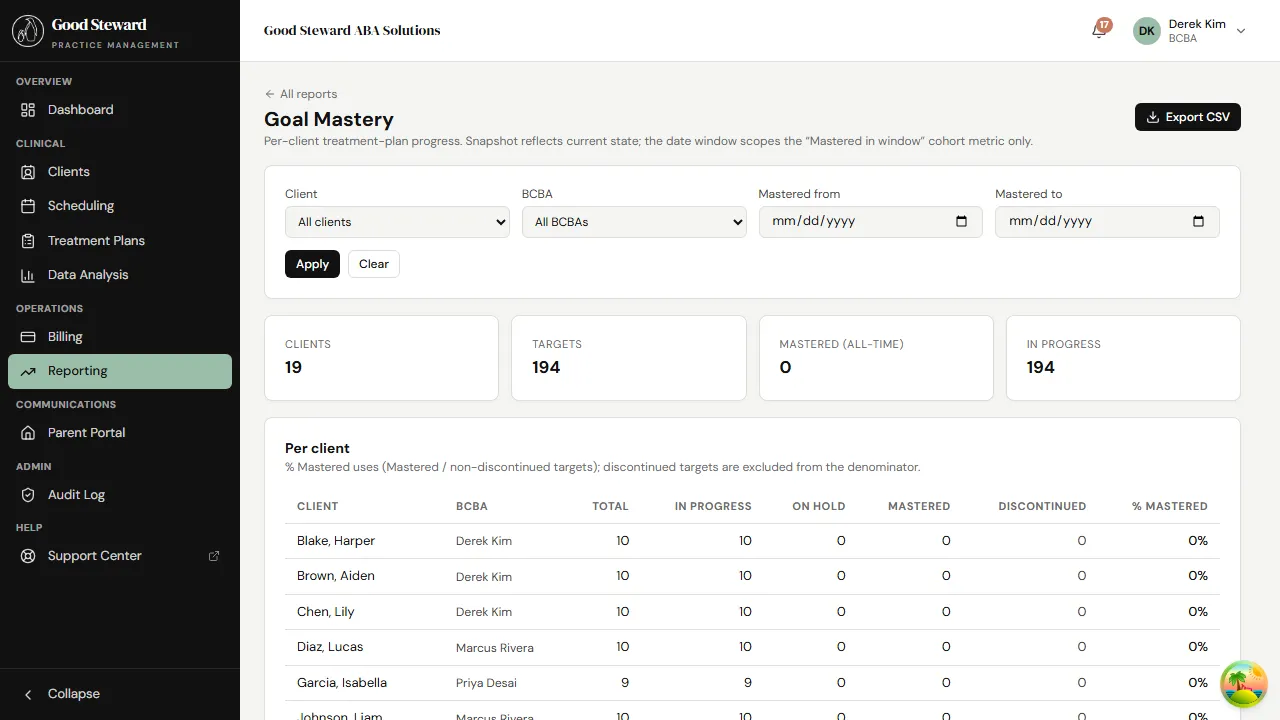
The KPI cards across the top show:
- Clients — total clients with at least one program
- Targets — every In-Progress + Mastered + On-Hold target (Discontinued excluded)
- Mastered (all-time) — count of targets ever mastered
- In Progress — currently active
The per-client table below breaks it down by client. The % Mastered column is the ratio of Mastered to non-Discontinued targets, so a client with one mastered target and zero in-progress shows 100%, while a client with zero mastered and ten in-progress shows 0%. Both are correct in their own way; that’s why the absolute counts matter alongside the ratio.
A client-scoped deep dive
Section titled “A client-scoped deep dive”Pick a client from the Client filter and click Apply.
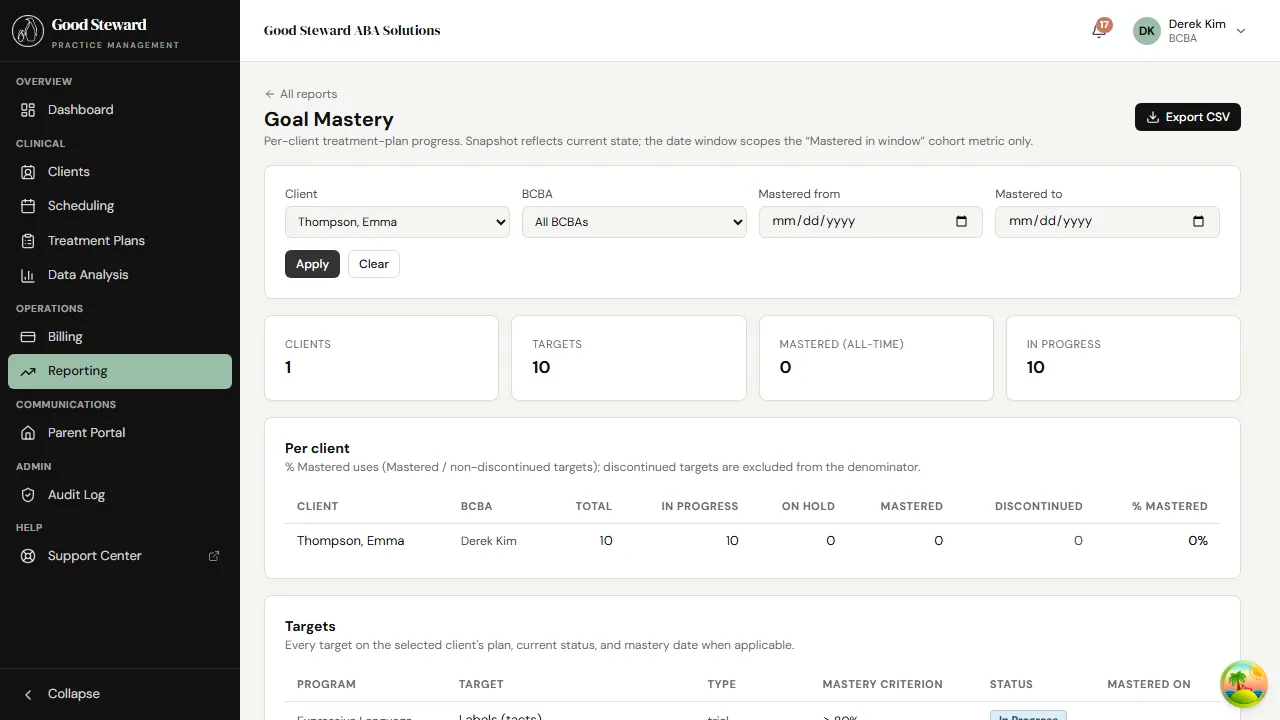
A second table appears below the rollup: Targets. Every target on the selected client’s plan, listed with:
- The program it belongs to
- The target name and data type
- The mastery criterion (the rule the system is checking)
- Current status (In Progress / Mastered / On Hold / Discontinued)
- The mastery date (filled when the target moved to Mastered)
This is the table you copy into a reauth packet — payers want to see which targets the client is actively working on, what’s been mastered, and what the criterion was that defined “mastered”.
Cohort metric — “Mastered in window”
Section titled “Cohort metric — “Mastered in window””Set Mastered from / Mastered to to filter the date window. The KPI cards above gain a Mastered in window metric — the count of targets mastered between those two dates. The per-client table gains a column showing each client’s contribution to that window.
This is the metric to use when you’re asked “how much progress did this client make this quarter?” — it answers a temporal question the all-time count can’t.
Marking a target mastered manually
Section titled “Marking a target mastered manually”In nearly all cases, mastery moves on its own as data points are saved. If you ever need to mark a target mastered manually — e.g. data was collected paper-side and entered later, or you’re backfilling history during a transition — open the program detail page (from the client’s Programs tab), find the target, and use the status dropdown to switch it to Mastered. The mastery date defaults to today; override it if the actual mastery happened earlier.
Both manual and automatic mastery transitions write an audit row.
Re-opening a mastered target after regression
Section titled “Re-opening a mastered target after regression”If a previously-mastered skill regresses (illness, school break, generalization stalled), open the target and switch its status back to In Progress. The original mastery date stays in history; the target re-enters the active denominator. New data points will re-evaluate against the same mastery criterion — the target can re-master once it’s stable again.
Moving a mastered target to maintenance
Section titled “Moving a mastered target to maintenance”The current build doesn’t have a separate “Maintenance” status. Practical workaround: keep the target as Mastered and reduce its data-collection frequency (a probe every 2 weeks instead of every session). The data widgets still accept input on a Mastered target, so probe data doesn’t get lost — and the mastery date stays accurate to the original demonstration.
If you need a true Maintenance status with its own reporting bucket, flag it for the practice admin — it’s a future-build candidate, not a hidden feature.
Reading mastery trends in the program detail
Section titled “Reading mastery trends in the program detail”For a single program’s longitudinal view, open the program directly (from the client’s Programs tab → click the program). The detail page shows each target’s data over time, the mastery criterion line overlaid, and trend annotations. Use this view when:
- Considering whether to discontinue a target that isn’t progressing.
- Identifying which targets need a procedural change (different prompt level, different reinforcer).
- Building a parent update — the trend lines tell a clearer story than a status table.
Exporting
Section titled “Exporting”The Export CSV button (top right of the report) emits a CSV with one row per client, suitable for paperwork, payer submissions, or import into a spreadsheet for further analysis. The export honors the current filter — including the cohort date window if set.