

Building a treatment plan
A treatment plan bundles a client’s active behaviors and programs into a single document the BCBA and family sign before services can be billed against it. This guide walks you from an empty plan to one that’s ready for the parent’s signature in the portal.
Before you start
Section titled “Before you start”You’ll need:
- A client record with the behaviors and programs you want included. The plan references the live operational definitions — editing a behavior or program later updates every plan that references it.
- The
Edit treatment planspermission. BCBAs and admins have it by default; ask an admin if a “New plan” button is missing.
1. Open the Treatment Plans tab
Section titled “1. Open the Treatment Plans tab”From the sidebar choose Treatment Plans, then pick the client from the Client dropdown. The tab opens to Active plans by default — flip to Draft or All if you’re looking for an in-progress plan.
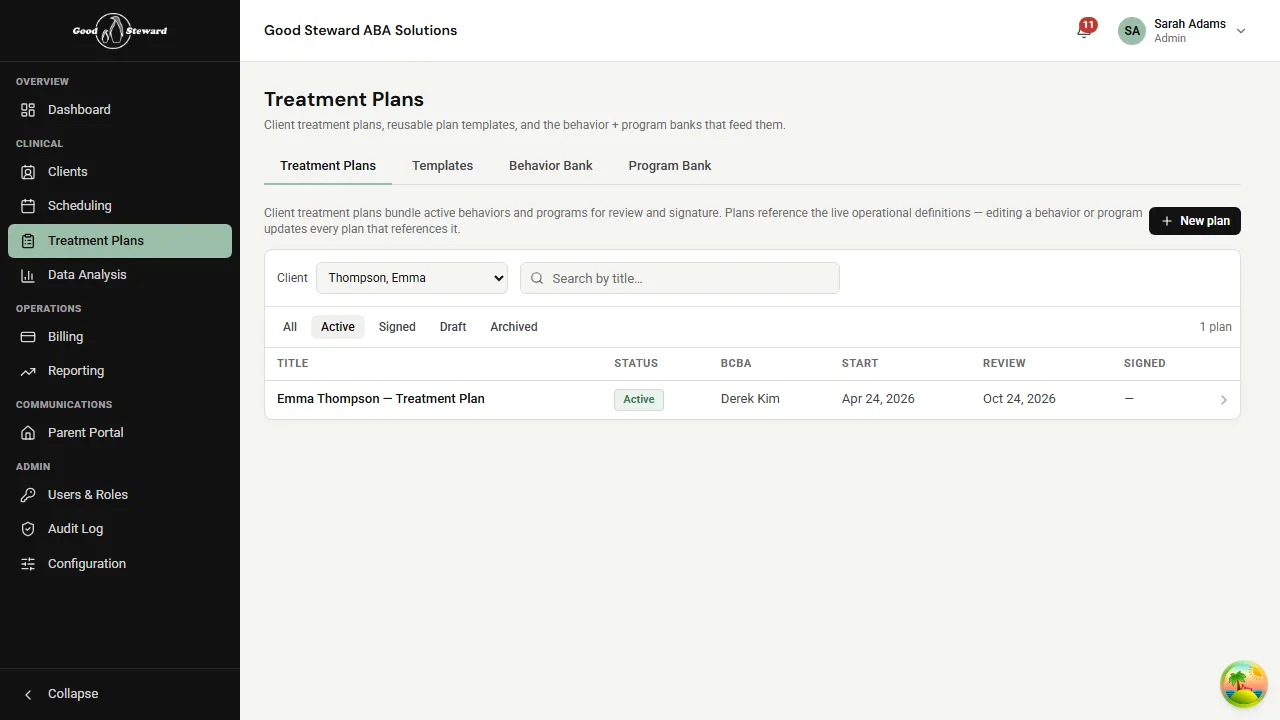
Click New plan in the top-right to start a draft.
2. Fill in the plan details
Section titled “2. Fill in the plan details”A new plan starts as a Draft and is the only state in which fields are editable. Everything below the header is optional except the title.
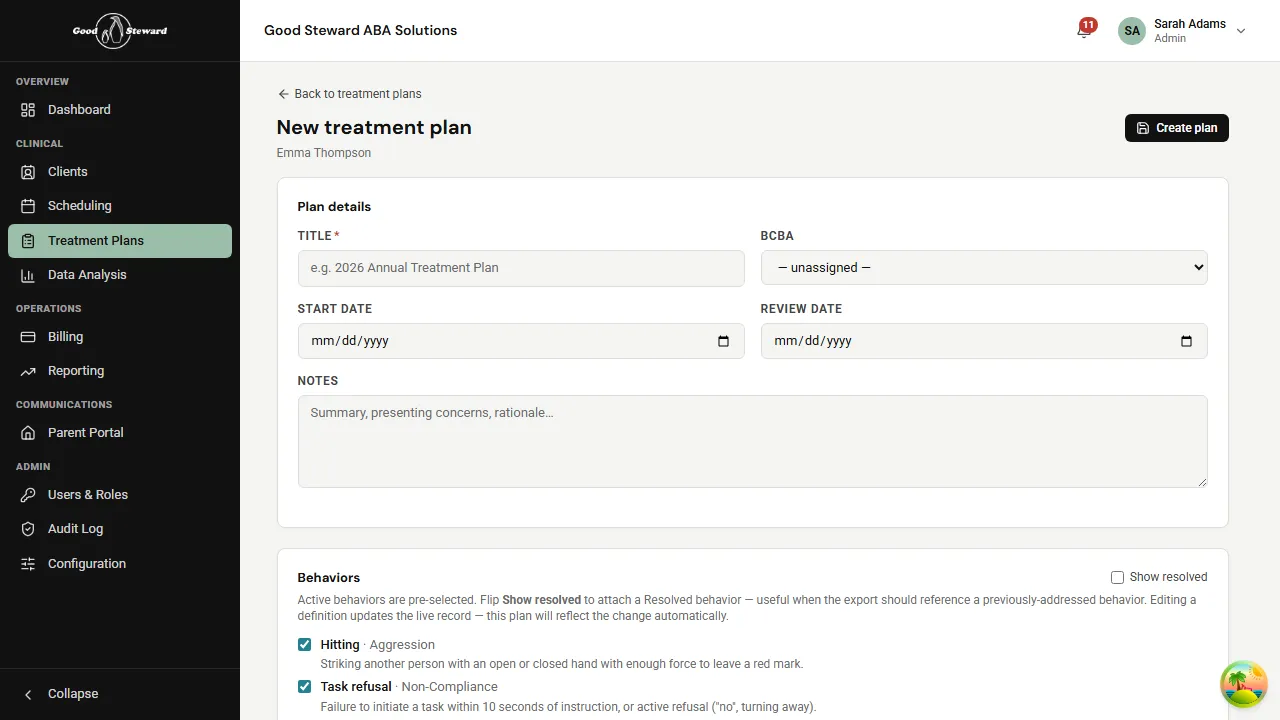
- Title — required. A name like 2026 Annual Treatment Plan or Q3 Update helps the family recognize what they’re signing.
- BCBA — the supervising BCBA for the plan. The list is filtered to staff whose role type is BCBA.
- Start date and Review date — the period the plan covers. The review date drives reminders on the dashboard.
- Notes — a free-text summary, presenting concerns, or rationale. This section ends up in the exported document.
Below the header, the Behaviors and Programs sections come pre-checked with everything currently Active on the client record. Uncheck anything you don’t want in this plan, or flip Show resolved / Show mastered & retired to attach an older record (useful for a “Mastered Goals” appendix).
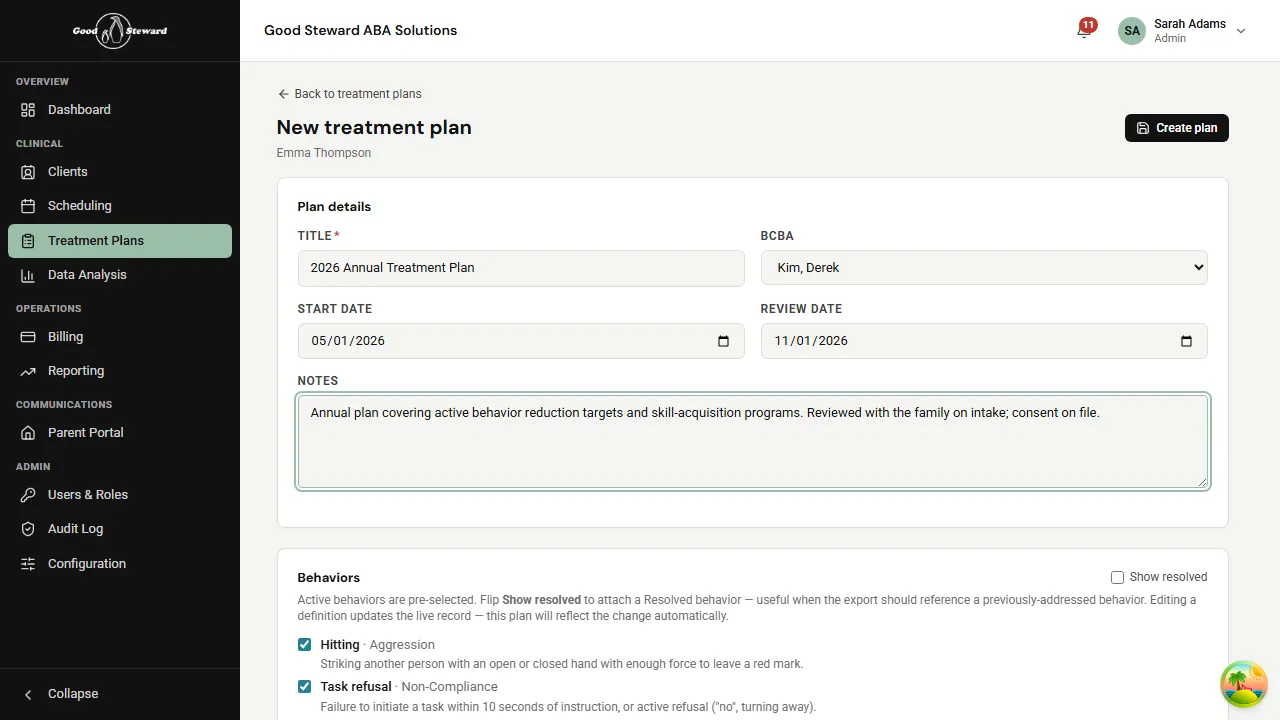
Click Create plan to save the draft.
3. Review the saved draft
Section titled “3. Review the saved draft”After saving you land on the plan’s detail page. The status badge reads Draft and a Signatures section appears at the bottom — neither side has signed yet.
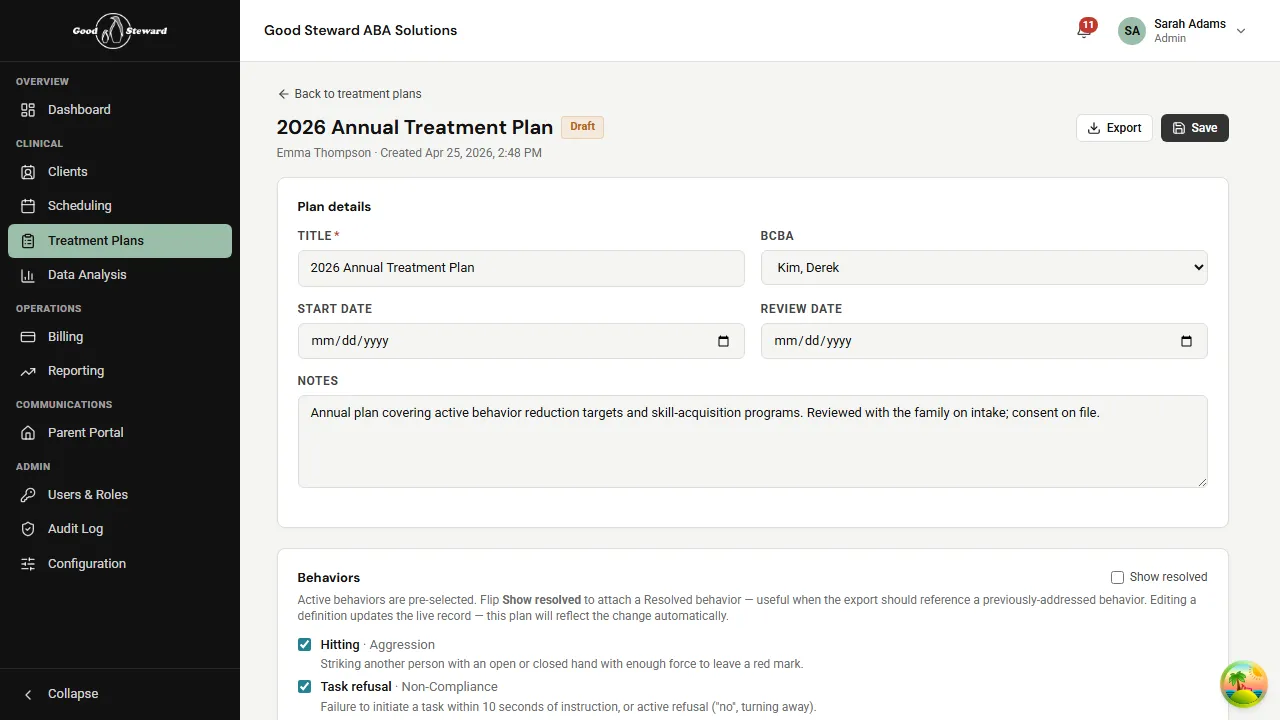
Anything in the form is still editable while the plan is a draft. If you need to delete a draft outright, scroll to the Delete draft button. Once a plan moves past Draft you can only archive it.
4. Sign as the BCBA
Section titled “4. Sign as the BCBA”The BCBA always signs first — the parent block stays disabled with the message “BCBA must sign first” until you do. Click Capture signature under BCBA.
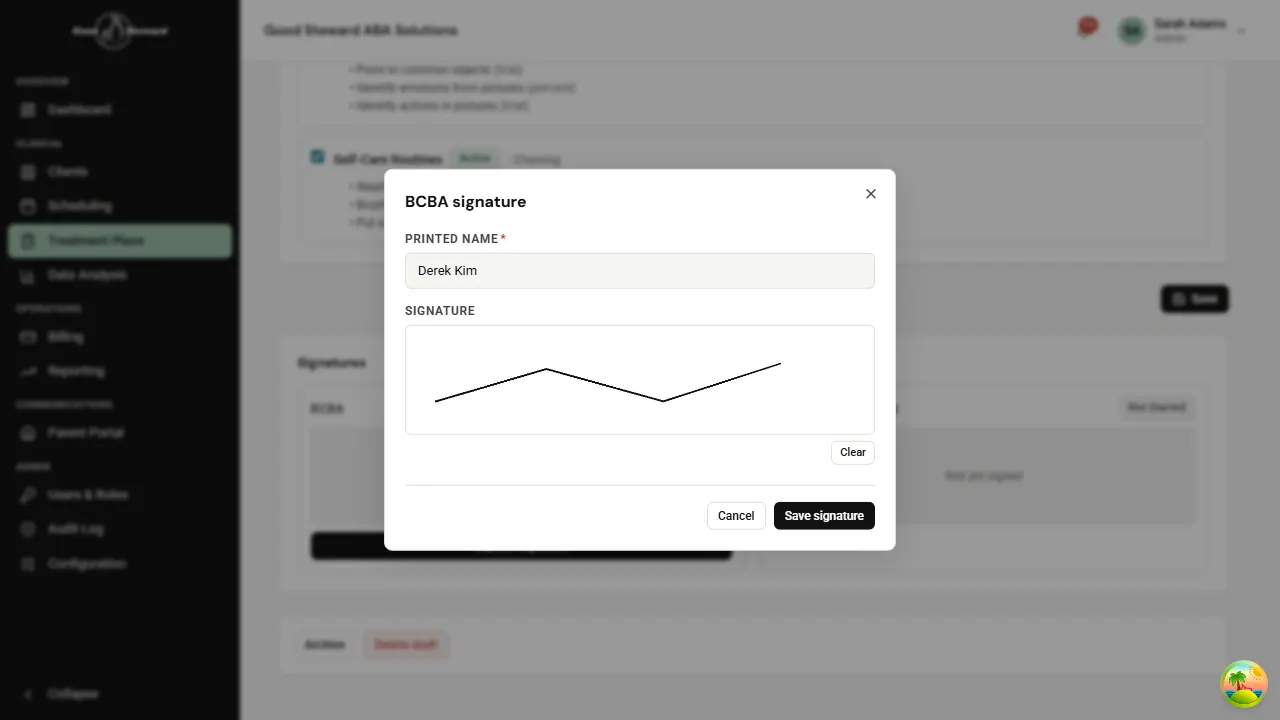
- Printed name is required.
- Signature is a finger or mouse drawing on the canvas. Use Clear if you need to redo it.
Click Save signature to commit. The dialog closes and the BCBA block now shows your name, the saved signature image, and the timestamp.
5. Send it to the parent portal
Section titled “5. Send it to the parent portal”Once the BCBA has signed, the parent block becomes available — but you’ll usually want the family to sign from the parent portal rather than in person. A Send to portal button appears below the Signatures section.
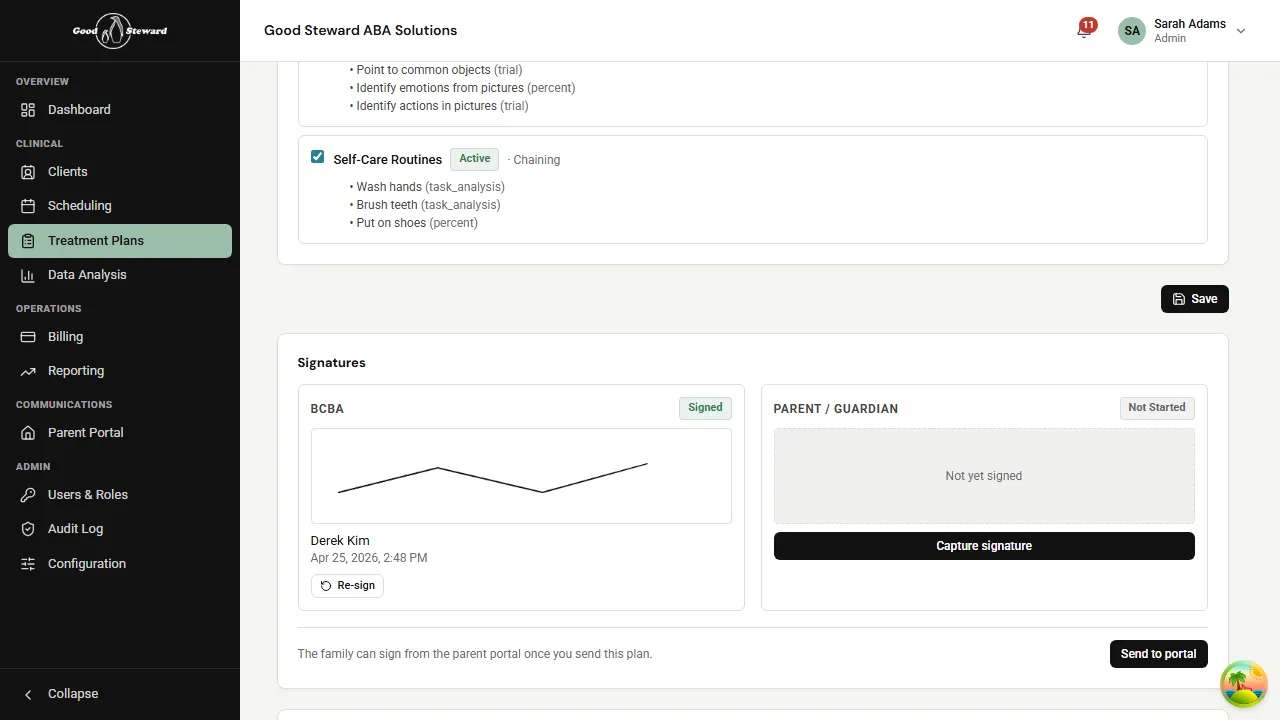
Clicking Send to portal locks the plan from further edits and notifies the parent. While the plan is out for signature you can either:
- Recall from portal — pulls the plan back so you can edit and resend.
- Wait for the parent to sign — once they do, the plan moves to Signed status automatically.
If you’d rather collect the parent’s signature in person, click Capture signature under the parent block instead and have them sign on your device.
6. Activate the plan
Section titled “6. Activate the plan”When both signatures are in, the plan moves to Signed. Open it again and click Activate to mark it as the currently-enforced plan of service.
After the plan is Active:
- Sessions and notes booked under the client are covered by it.
- Programs the plan included as Planned stay Planned — activate each one separately from the client’s Programs tab when you’re ready to start running it.
- The plan can no longer be edited. Create a new plan for changes; archive the old one when the new one is signed.
Common workflows
Section titled “Common workflows”Re-sending after edits. While a plan is out for portal signature it’s read-only. Click Recall from portal, make your edits, re-sign as the BCBA, then Send to portal again.
Scratching signatures. From a Signed plan, click Scratch signatures to roll back to Draft. Both signature images are purged from the database. Use this when something material in the plan has to change after signing.
Archiving. Plans can be archived from any status except Archived itself. Archived plans are read-only and can’t be transitioned back — start a new plan if you need to keep working.