
Starting and ending a session
Once a session opens, the Detail tab is your home base. It shows who, what, when, and the visit-verification controls if your practice uses electronic visit verification (EVV).
Opening a session
Section titled “Opening a session”From the dashboard timeline or the Scheduling calendar, click the session you’re about to run. The session page opens to the Detail tab.
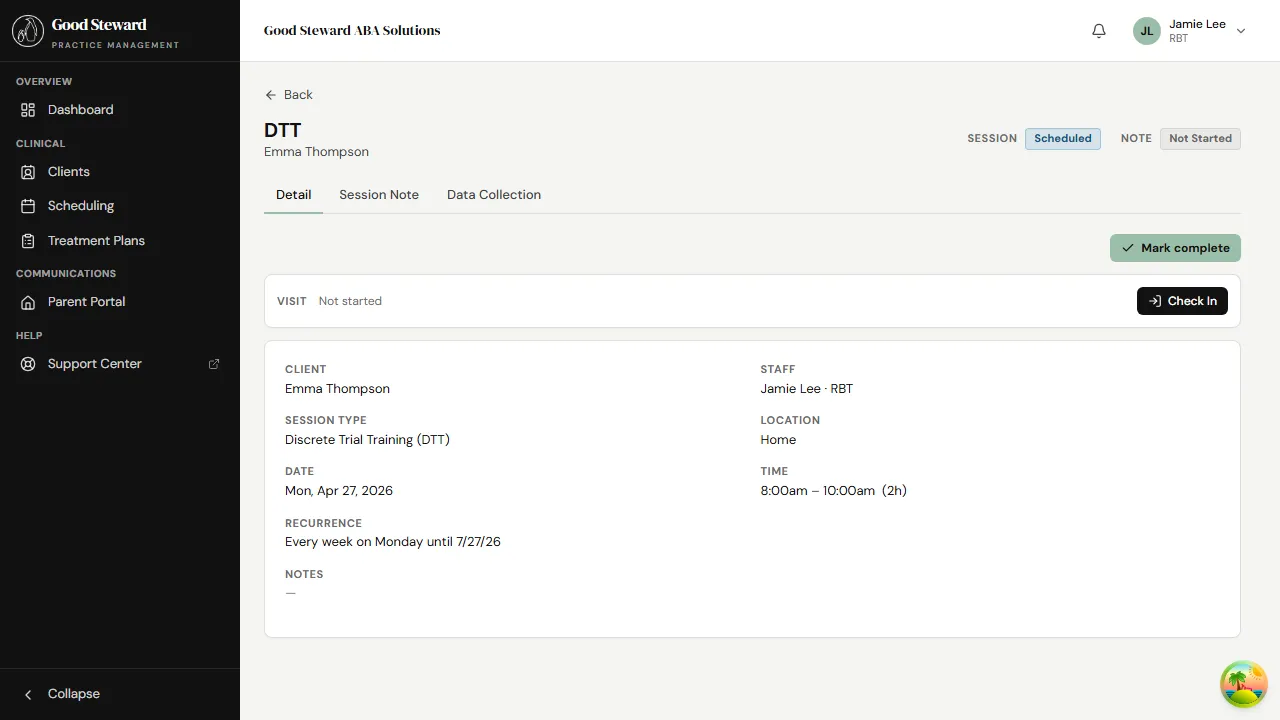
Up top: the client’s name, the service, the scheduled start/end, the location, and the session status. The two pills near the top right (Session and Note) tell you at a glance whether the session is scheduled / in progress / finalized and whether the note is still a draft.
The three tabs below — Detail, Session Note, Data Collection — are the surfaces you’ll move between during the visit.
Checking in (visit verification)
Section titled “Checking in (visit verification)”If your practice has EVV turned on, you’ll see a Visit card on the Detail tab with a Check In button.
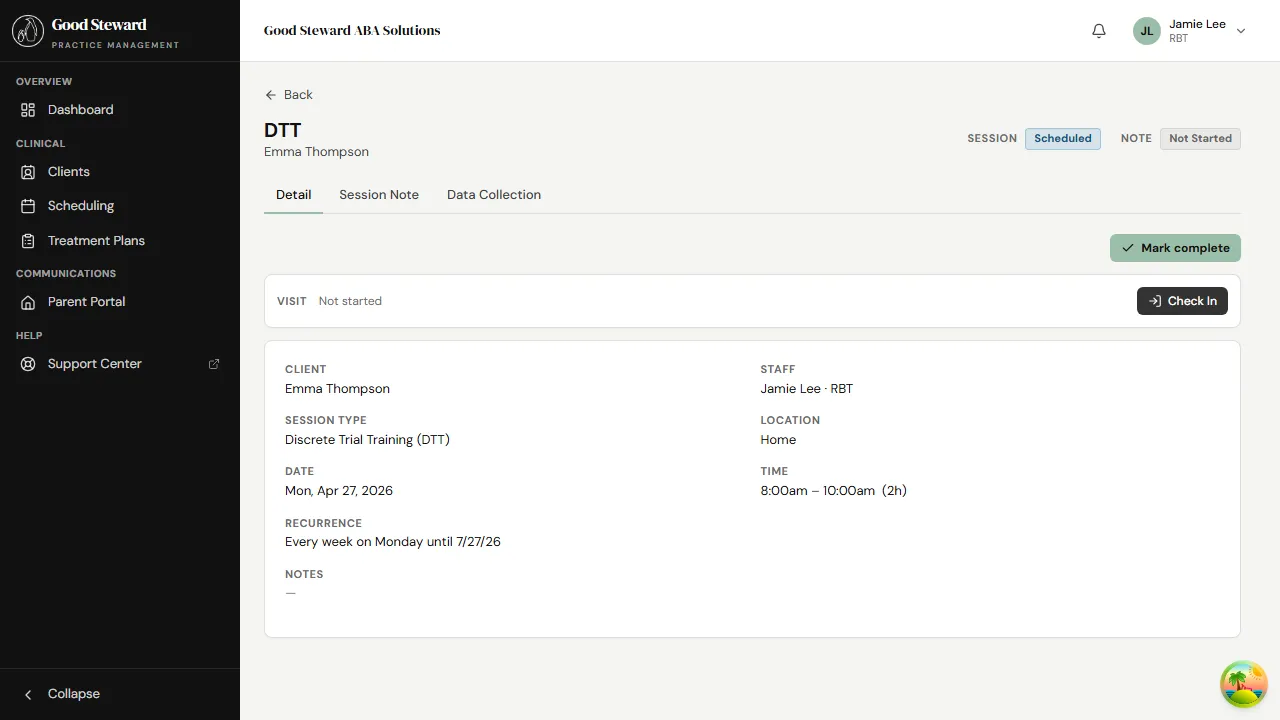
Tap Check In when you arrive and are ready to start. The browser will ask permission to use your location — say yes; the app captures your latitude/longitude (and a timestamp) so the practice has a record that you were on-site at the start of the visit.
While checked in, the card shows the time you started and the captured location. The session status flips to In Progress automatically.
Checking out
Section titled “Checking out”When you finish, tap Check Out on the same card. Location and timestamp are captured a second time. Once you check out the visit record is locked — you don’t need to do anything else for EVV; the practice has what it needs.
If location is unavailable
Section titled “If location is unavailable”If the browser can’t get a location (denied permission, no GPS, indoor dead zone), the check-in still works but the visit is flagged as location unavailable. Add a quick note in the session note about why — your BCBA reviews flagged visits.
What if EVV isn’t turned on?
Section titled “What if EVV isn’t turned on?”You won’t see the Visit card at all — that’s normal. The session still runs the same way; you just don’t have a check-in / check-out step. Status changes happen as a side-effect of starting data collection or finalizing the note.
Switching between Note and Data Collection
Section titled “Switching between Note and Data Collection”The Session Note and Data Collection tabs share the same session — you can flip between them as much as you need. Anything you type into the note draft saves automatically; data points save when you press the per-target Save button (more on this in the data collection guide).
Ending a session
Section titled “Ending a session”You don’t formally “end” a session — finishing the note is what closes it. Once the note is Submitted, the session moves to Finalized status and the BCBA can review it. See Writing your session note for the submit step.
Editing a session that already ended
Section titled “Editing a session that already ended”You can re-open a Finalized session up to your practice’s edit window (usually 24–48 hours). After that, only a BCBA or admin can amend it. If you spot a mistake later, message your BCBA — they’ll pull the note back for editing or post an addendum.