

Tracking authorizations and eligibility
Authorizations and eligibility live on the client record. The Auth & Eligibility tab is your day-to-day surface for one client; the Auth Utilization report gives you the at-a-glance view across your whole caseload.
The client’s Auth & Eligibility tab
Section titled “The client’s Auth & Eligibility tab”Open a client and click the Auth & Eligibility tab. You’ll see two sections: Authorizations on top, Eligibility (insurance verification history) below.
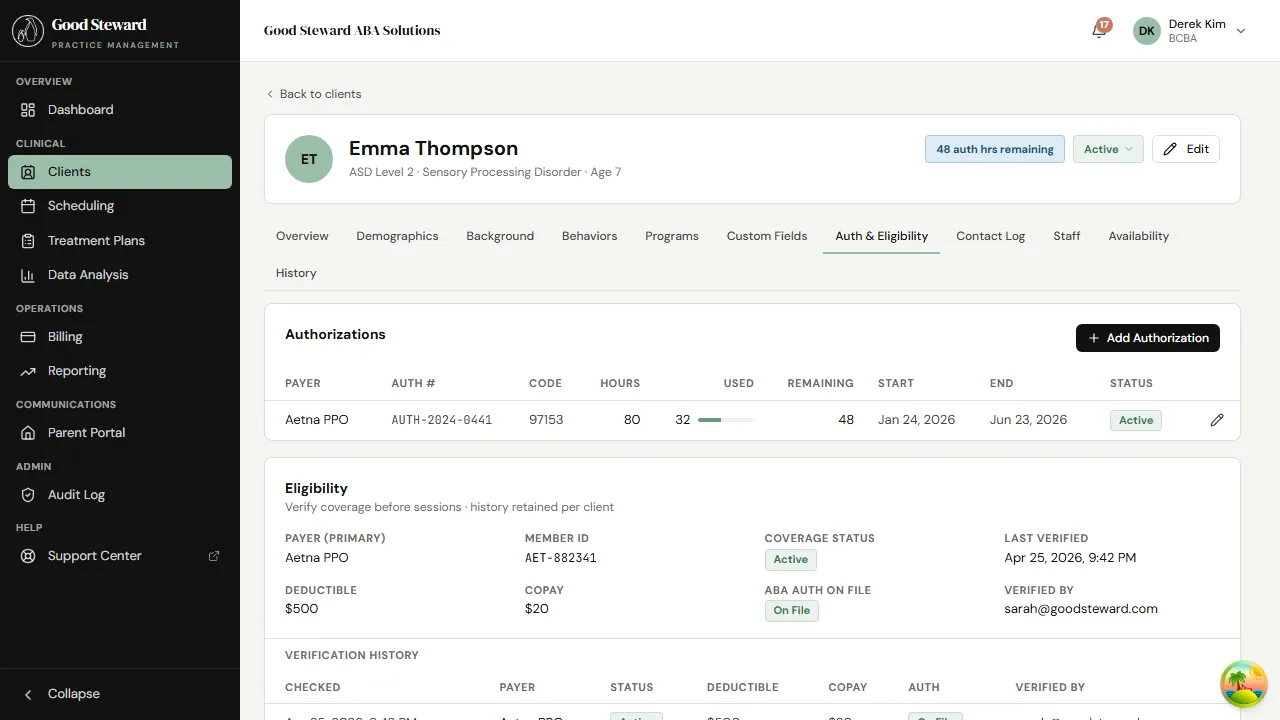
The authorizations table shows one row per active or expired auth:
- Payer and Auth # — what payer issued this approval and the reference number on their letter.
- Code — the CPT/HCPCS code the approval covers (97153 for direct treatment, 97155 for protocol modification, 0362T for assessment, etc.). One auth covers one code.
- Hours / Used / Remaining — the cap, the running total burned, and what’s left. The bar visualizes burn-down — green for comfortable, yellow as you approach the cap, red over.
- Start / End — the auth’s effective dates.
- Status — Active, Expiring (within 30 days of end), Expired, or Pending (not yet started).
Click the pencil at the end of a row to edit; click Add Authorization in the top-right to create a new one.
Adding an authorization
Section titled “Adding an authorization”The dialog asks for everything a payer letter usually carries.
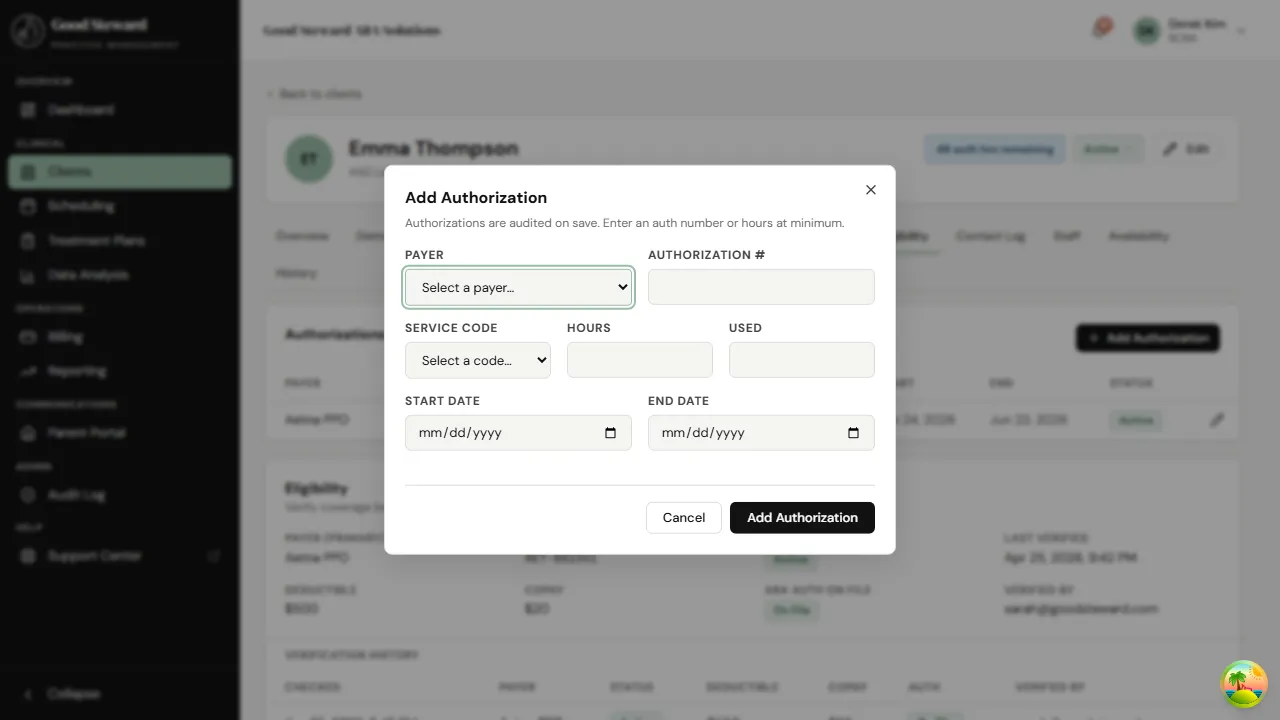
A few tips:
- Hours is the total approved on the letter — not “remaining”. Used hours track automatically as sessions are finalized.
- Code must match the CPT code that will be billed against the auth; a 97153 auth doesn’t authorize 97155 sessions.
- If the payer’s letter approves multiple codes, create one row per code.
- The Notes field is free text — useful for “ABA waiver renewal, see 2026-04 letter” or similar institutional knowledge.
When you save, the auth appears in the table immediately. Sessions booked under the matching CPT code start drawing it down on finalize.
The auth progress bar — what the colors mean
Section titled “The auth progress bar — what the colors mean”- Green — under 60% utilized. Plenty of room.
- Yellow — 60–80% utilized. Time to think about reauth.
- Red — over 80% (or expired). Submit reauth paperwork now if you intend to keep services running.
Practices that bill heavy hours often request reauth at the 60–70% mark — the timeline from request to issued letter is rarely under two weeks.
Eligibility — verifying coverage before sessions
Section titled “Eligibility — verifying coverage before sessions”Below the authorizations table is the Eligibility card showing the client’s primary payer, member ID, copay/deductible, and the most recent verification. Below that, a verification history lists every re-check.
Verifying eligibility before a long block of sessions catches things like: plan termination, a new deductible reset on Jan 1, or a benefit-cap exhaustion. Use Verify eligibility (when surfaced) to log a fresh check; the result writes to history.
The Auth Utilization report
Section titled “The Auth Utilization report”For a roll-up across your whole caseload, head to Reporting → Auth Utilization.
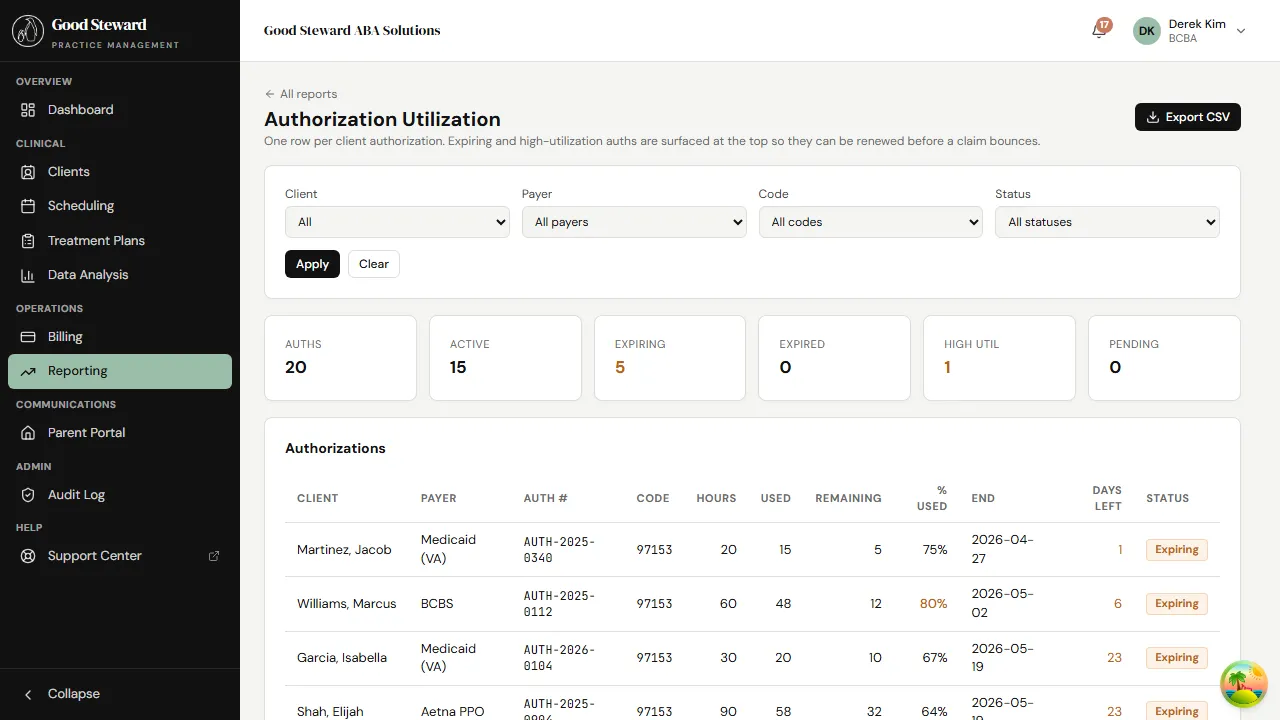
Filter by status to find what needs attention:
- Expiring — auths ending in the next 30 days. Reauth packets should be in motion.
- Expired — auths past their end date. Sessions on these clients shouldn’t be on the calendar; if they are, billing will deny.
- High util (≥80%) — auths where the units are running out faster than the dates would predict.
Each row shows the same payer / code / hours columns as the per-client view, plus the client name. Click a row to jump to that client’s Auth & Eligibility tab.
Practices typically run this report Monday morning to set the week’s priorities.
What happens when an auth expires mid-session
Section titled “What happens when an auth expires mid-session”If a session is finalized and there’s no Active auth covering its CPT code, the resulting claim is flagged for review rather than auto-sent. You’ll see it in Billing → Claims with a status like Held: no auth. Sort that out before submitting — usually by adding the issued auth that backdates to cover the session, or by writing the visit off as non-billable.
Re-verifying eligibility
Section titled “Re-verifying eligibility”If you’ve added a new payer or the family changes plans:
- Update the client’s Demographics tab with the new insurance primary/secondary fields.
- Open the Auth & Eligibility tab and run a fresh eligibility check (the verification entry is logged with timestamp + the staff member who ran it).
- If the new payer requires its own ABA auth, request one and add it when the letter arrives.
The client’s record now has both the demographic change and the verification audit trail — both are needed if a future denial requires appeal documentation.