
Writing your session note
The Session Note tab is your structured write-up of what happened during the session. It’s what the BCBA reviews, what gets attached to the claim, and (depending on your practice’s setup) what the parent signs off on.
Where the draft lives
Section titled “Where the draft lives”When you open the tab on a fresh session, you see the empty form — every field is blank.
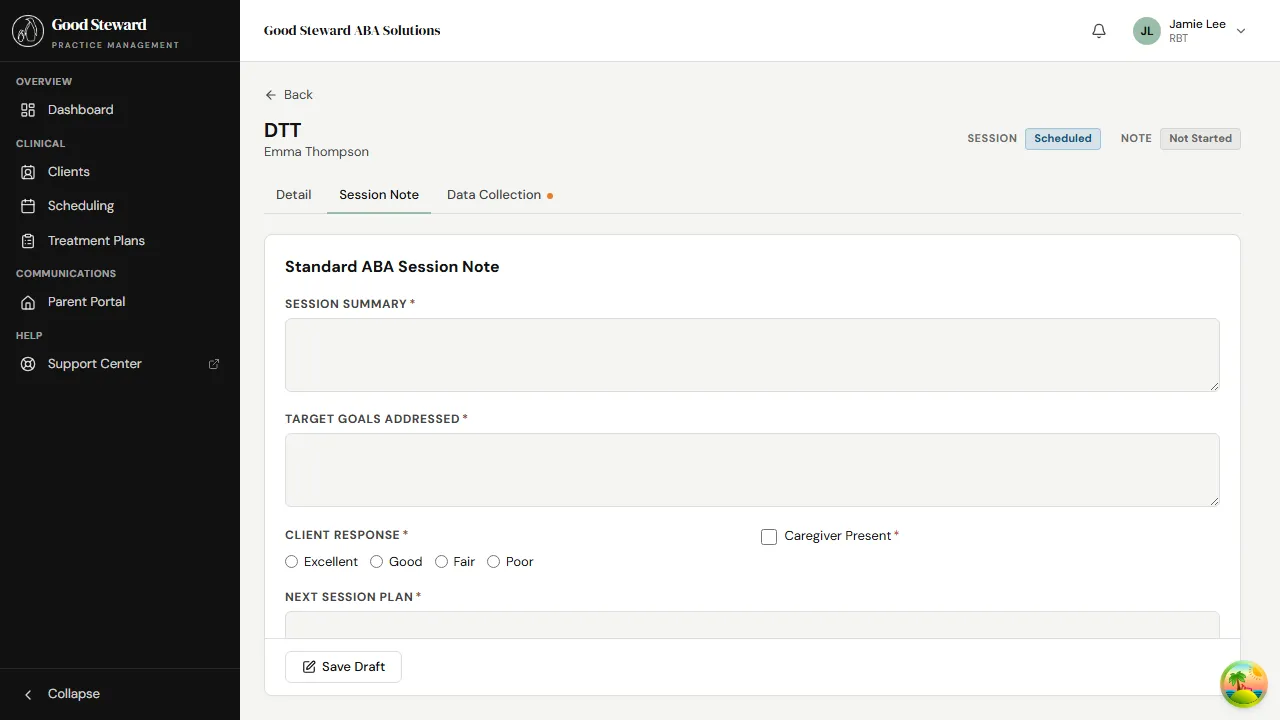
The form is broken into sections — narrative, targets worked, behavior observations, parent communication, supervision notes if applicable. Exactly which fields show depend on your practice’s note template, but the shape is consistent: section headings, free-text fields, a few radio sets and dropdowns.
Drafts auto-save to the server. As you type, your in-progress note saves to the practice database every few seconds. You can close the tab, get pulled into another session, come back later — your draft is still there. Drafts are not stored in your browser’s local storage, which means a phone refresh or a different device picks up the same draft.
Filling out the form
Section titled “Filling out the form”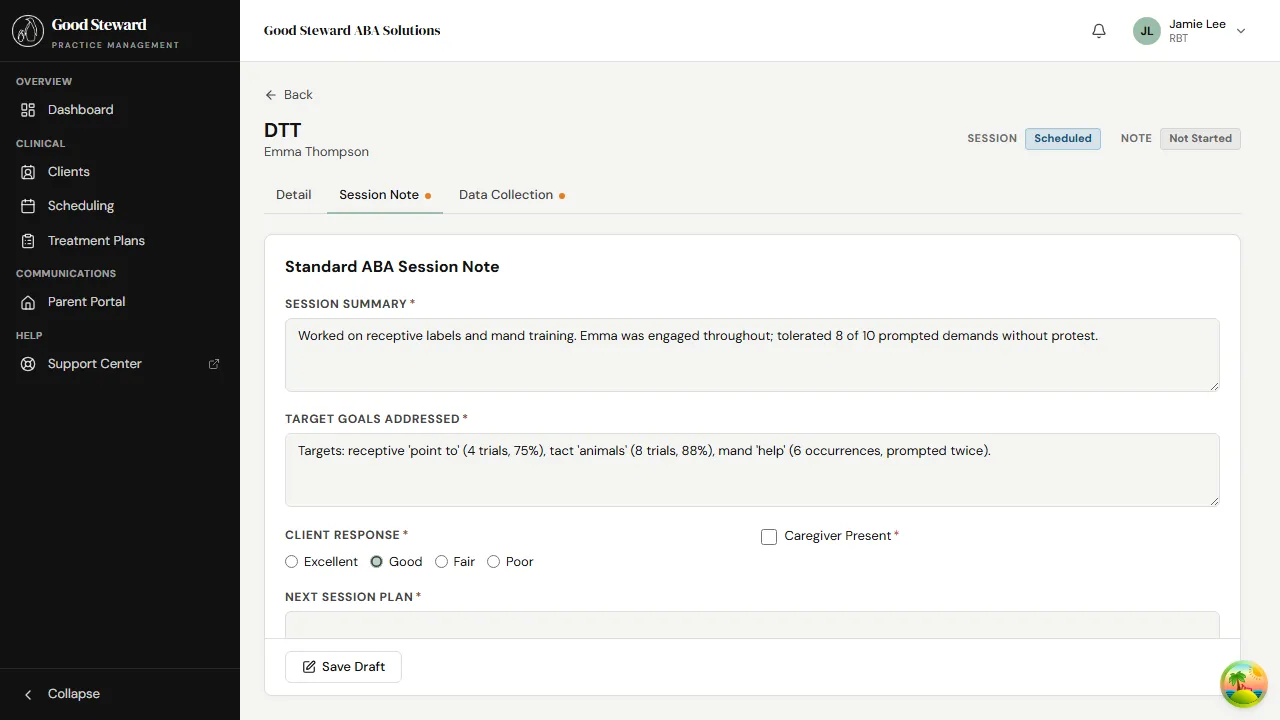
A few notes on the field types you’ll see:
- Free-text areas (narrative, observations) — write at the level of detail your practice expects. Most clinics aim for 3–6 sentences per major section. The text grows the box as you type.
- Radio sets (mood, engagement, response to prompts) — pick one. These often map to ABC notation or a per-practice scale.
- Multi-select (behaviors observed, antecedents) — tap each that applies.
- Numeric fields (mand count, trial accuracy) — usually pre-filled from the data you already collected on the Data Collection tab.
If a field is required, the form tells you so when you try to submit; nothing is required mid-draft.
Pulling captured data into the narrative
Section titled “Pulling captured data into the narrative”You don’t have to retype data you already collected. Many of the numeric / target fields in the note are pre-populated from the Data Collection tab — accuracy percentages, mand counts, duration totals, TA step independence — as you save data points.
If you want to reference a specific target in your narrative (“Emma mastered the body-parts target today, 9/10”), the data is right there on the same page. Flip to the Data Collection tab, copy the figure, flip back.
Parent / client signature
Section titled “Parent / client signature”If your practice requires an in-session parent signature (common for home-based services), a signature pad appears at the bottom of the note. Hand the device to the parent; they sign with their finger or a stylus. The signature image is saved with the note.
If signature is required and missing when you submit, you’ll see a clear error pointing to it. You can save the note as a draft without signature; signature is checked at submit time.
Submitting for BCBA review
Section titled “Submitting for BCBA review”When the note is complete, the Submit for review button at the bottom of the form sends it to your supervising BCBA. After submit:
- The session status flips to Finalized.
- The note status switches from Draft to Pending BCBA review.
- The note becomes read-only on your end (you can’t edit a submitted note).
- Your BCBA gets a notification on their dashboard.
Submitting also queues the session for billing — claim generation runs on a schedule, picking up Finalized sessions with reviewed notes.
Responding to a sent-back note
Section titled “Responding to a sent-back note”If your BCBA finds something that needs revision, they’ll send the note back. You’ll see it on your dashboard under Notes needing attention with a short comment from the BCBA explaining what to address.
Open the note, make the changes, and submit again. The history is preserved — the BCBA sees the original draft, your revision, and the back-and-forth comments.
What “Submitted” lets you still change
Section titled “What “Submitted” lets you still change”A submitted note is locked for editing, but if you spot a real error after the fact, message your BCBA. They can:
- Pull the note back for editing if it hasn’t been signed off yet.
- Post an addendum if the original is finalized — the addendum is appended (never overwriting the original) and timestamped.
This pattern is intentional: clinical records are append-only on purpose. The original you submitted always stays in the record so later reviewers can see what was originally documented.